Scrolling box

computer hardware

Breaking News

Social Icons

Recent Comments

Showing posts with label Computer hardware. Show all posts

Sunday, April 6, 2014

Razer BlackWidow Ultimate Mechanical Gaming Keyboard Review

Introduction and Packaging


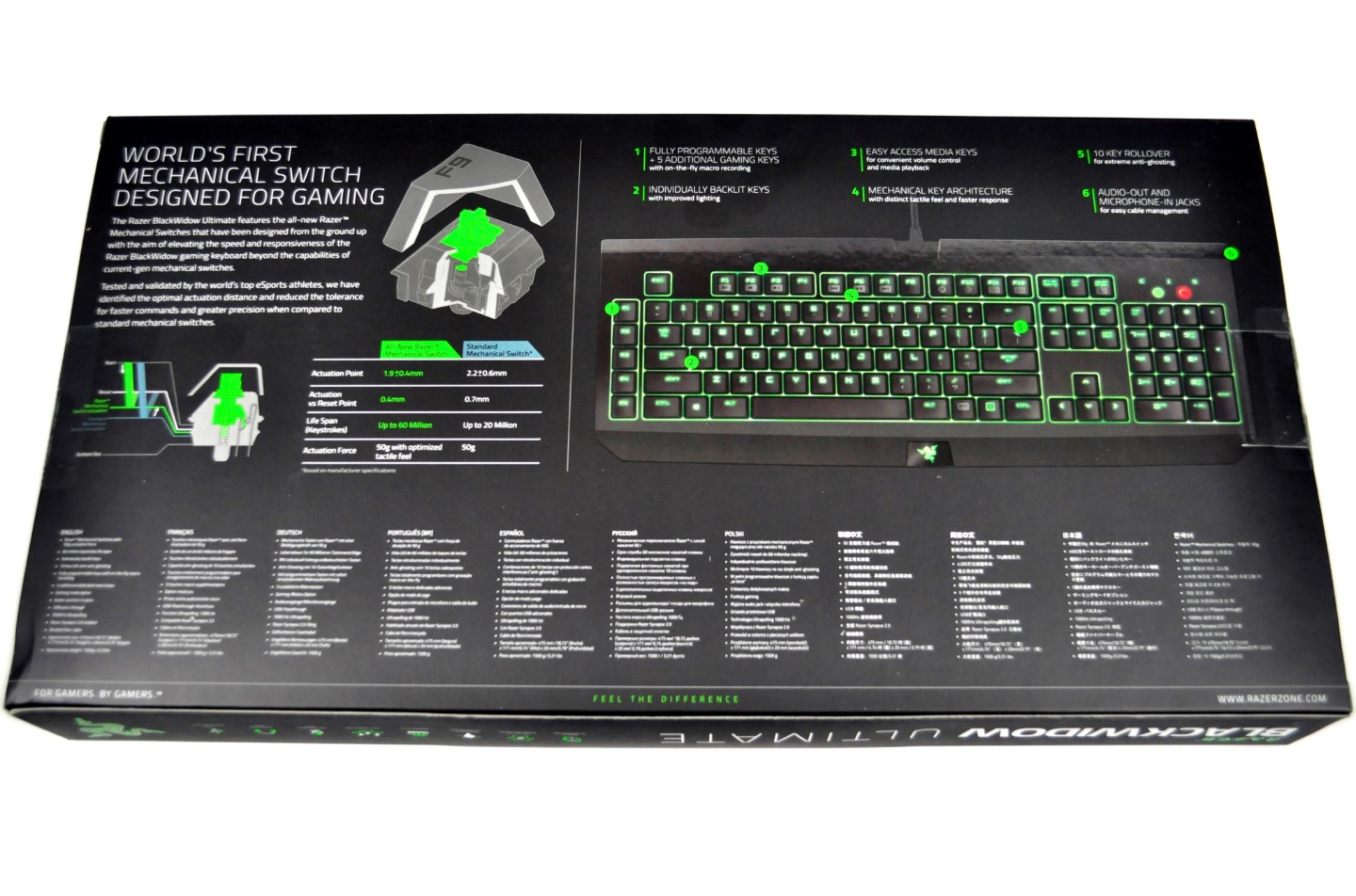
Several months ago, we had a quick look at theBlackWidow Ultimate from Razer, a company very well known for their focus on gaming-related products. A few weeks ago, Razer announced that they have developed their own all-new mechanical switches, upgrading most of their keyboards with them in the process. The upgrade involves the BlackWidow Ultimate keyboard, and we have the new "2014" version that we'll be reviewing today. Razer has made plenty of noise about their new switches, and while we'll have more to say on that in a moment, let's start as usual with a look at the packaging and included items.
   
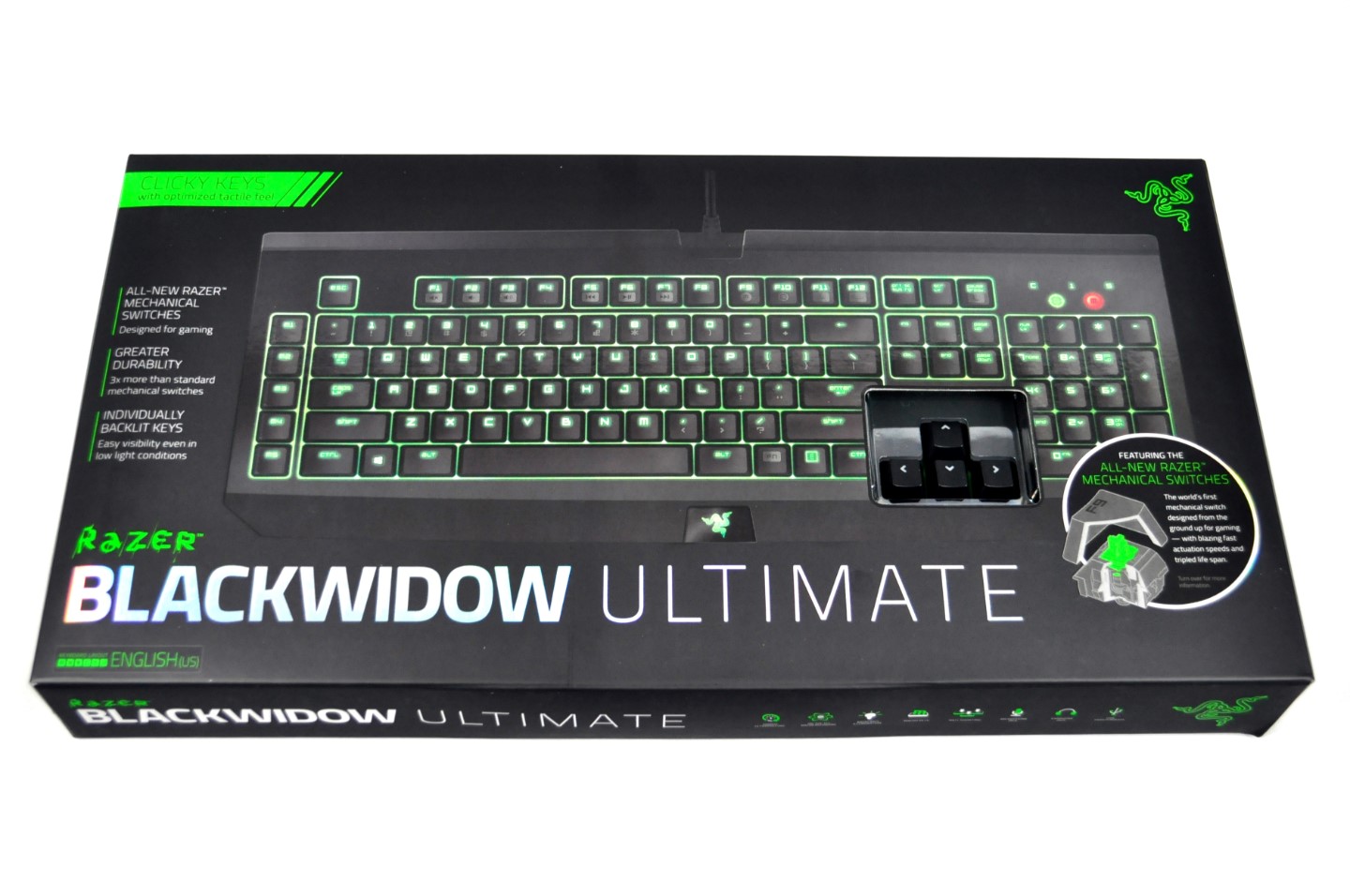
We received the BlackWidow Ultimate in a nicely designed cardboard box, with a small opening allowing you to test the keys. We especially liked that idea and we wholeheartedly recommend, given that it is possible, that you should visit a retail store and test the switches yourself before purchasing a keyboard. No amount of text can fully describe the feel of a mechanical switch, especially if you have no previous experience with any mechanical keyboard.
The bundle is well presented but minimal; there is a nice envelope with a quick start guide, warranty information and product registration cards, as well as two large stickers, but that is about it. There is not even a disk with the keyboard's software; an internet connection is required to download it.

Software

The Razer Synapse software is, in our opinion, where Razer should have focused their marketing attention. With it, several profiles can be programmed into the BlackWidow Ultimate and the user can switch between them on the fly. It is also possible to link a program to each profile, a very handy feature if you want to link each profile to a specific game or application. It would be even better if the software would reset to the previous profile once the game/application has been closed though.
Aside from the programming of macros, the software allows every single key of the keyboard to be reprogrammed, a feature that can be highly useful. You can easily change the functions of any key -- and not just reprogram it to perform a single keystroke; the keys can be reprogrammed to execute macros, perform multimedia functions, launch applications and more. The combinations are practically infinite and this feature can be extremely useful, especially in games that do not allow the remapping of certain keys.
Furthermore, the backlight brightness can be adjusted and linked to certain profiles It can also be set to pulsate, which we do not recommend, as the brightness will essentially blind you every several seconds. When online, the Razer Synapse even allows the user to save the profiles to a free online account and import them into other Razer keyboards.
In short, the Synapse software has plenty of good features, and it's one of the highlights of the BlackWidow.
Read more ...

Asus A88XM-A AMD A88X Chipset (Socket FM2+) DDR3 Micro ATX Motherboard


ASUS 5X Protection

All-round protection provides the best quality, reliability, and durability
ASUS motherboards guard your PC with 5X Protection. We use quality components like DIGI+ VRM digital power design for precise APU power on demand, ESD units tested to strict standards that eliminate electrostatic interference, and resettable fuses around DRAM slots to prevent overcurrent and short-circuit damage. We also use corrosion-resistant back I/O shields, all examples of ASUS providing the best possible reliability and durability.
New UEFI BIOS – friendlier and more intuitive
Exclusive EZ Mode adds useful info to become even easier
Media-renowned UEFI BIOS from ASUS provides the smoothest mouse-controlled graphical BIOS, and now features more intuitive functions to quickly take you to favorite BIOS pages and frequently-accessed settings through custom shortcuts. You can even write quick notes in-BIOS for future reference, view an activity log of setting changes and modifications, and rename SATA ports. EZ Mode has a whole new look, upgraded with extra-friendly capabilities like detailed fan controls, D.O.C.P profile settings, SATA information, and fast clock adjustment. Together, these perfect your BIOS experience.
USB 3.0 Boost (UASP Support)
170% faster transfer speeds than traditional USB 3.0
ASUS USB 3.0 Boost technology supports UASP (USB Attached SCSI Protocol) in Windows 8. With USB 3.0 Boost technology, a USB device's transmission speed is significantly increased up to 170%, adding to already fast USB 3.0 performance. ASUS software automatically accelerates data rates for compatible USB 3.0 peripherals without any user interaction.
• World’s 1st USB 3.0 UASP support – instantly 170% faster.
• Complete USB 3.0 solution – performance boost under Turbo Mode or UASP Mode for most USB devices.
• Simple plug and boost – auto detection design ensures best performance
• ASUS 5X PROTECTION - All-round protection provides the best quality, reliability, and durability
• New UEFI BIOS – Friendlier, easier, and more intuitive with helpful info added
• USB 3.0 Boost (UASP Support) - 170% faster transfer speeds than traditional USB 3.0
• Network iControl - Real-time network bandwidth management 
Specification:-
- Processor Support: Supports AMD® Fusion FM2+ series
- Chipset: AMD® A88X chipset
- Memory Support: DDR3 1066/1333/1600/1866/2133 (2400OC) SDRAM (64GB Max) (Supports dual channel mode)
- LAN: Supports LAN 10/100/1000 Fast Ethernet
- Audio: 3 Channel with audio sensing
- SATA: 6 SATA 6Gb/s ports
- 1x VGA port
- 1x HDMI port
- 1x DVI-D
- 6x USB 2.0 ports
- 4x USB 3.0 ports
- 1x LAN jack
- 3x flexible audio jacks
- 1x Front Panel Audio connector
- 1x Serial connector
- 1x PCI Express x16 slot
- 1x PCI Express x1 slot
- 1x PCI slot
- Micro-ATX
Read more ...

ASUS A88XM-A FM2+ / FM2 AMD A88X (Bolton D4) HDMI SATA 6Gb/s USB 3.0 Micro ATX AMD Motherboard with UEFI BIOS

Learn more about the ASUS A88XM-A


Model

Brand
ASUS
Model
A88XM-A

Supported CPU

CPU Socket Type
FM2+ / FM2
CPU Type
Athlon/A- Series (FM2+)

Chipsets

Chipset
AMD A88X (Bolton D4)

Memory

Number of Memory Slots
4×240pin
Memory Standard
DDR3 2133/1866/1600/1333
Maximum Memory Supported
64GB
Channel Supported
Dual Channel

Expansion Slots

PCI Express 2.0 x16
1
PCI Express x1
1
PCI Slots
1

Storage Devices

SATA 6Gb/s
6 x SATA 6Gb/s
SATA RAID
0/1/5/JBOD

Onboard Video

Onboard Video Chipset
None

Onboard Audio

Audio Chipset
Realtek ALC887-VD
Audio Channels
8 Channels

Onboard LAN

LAN Chipset
Realtek 8111G
Max LAN Speed
10/100/1000Mbps

Rear Panel Ports

PS/2
2
Video Ports
D-Sub + DVI
HDMI
1 x HDMI
USB 1.1/2.0
2 x USB 2.0
USB 3.0
2 x USB 3.0
Audio Ports
3 Ports

Internal I/O Connectors

Onboard USB
2 x USB 3.0 + 4 x USB 2.0
Other Connectors
1 x COM port(s) connector(s)
1 x CPU Fan connector(s)
1 x Chassis Fan connector(s)
1 x S/PDIF out header(s)
1 x 24-pin EATX Power connector(s)
1 x 4-pin ATX 12V Power connector(s)
1 x Internal speaker connector(s)
1 x System panel(s)

Physical Spec

Form Factor
Micro ATX
Dimensions
9.3" x 8.2"
Power Pin
24 Pin

Features

Features
FM2+ socketed motherboard features high-endurance 5X Protection and new UEFI BIOS on the A88X chipset

ASUS 5X PROTECTION - All-round protection provides the best quality, reliability, and durability

New UEFI BIOS - Friendlier, easier, and more intuitive with helpful info added

USB 3.0 Boost (UASP Support) - 170% faster transfer speeds than traditional USB 3.0

Network iControl - Real-time network bandwidth management
Read more ...

MSI A88XM-E35 In The Box

MSI A88XM-E35 In The Box

Extra contents in a motherboard box can be fun or help reduce the overall cost of a build. Motherboard manufacturers are able to purchase in bulk, meaning that the overall additional cost to the end user should be minimal. However, on a motherboard this inexpensive, we should not hold out for much:
Driver CD
Manual
Rear Panel Guard
Two SATA Cables

It might make sense that users who go for this motherboard might not be using more than two SATA devices, but I would imagine that the self-build community might be looking at three – a boot SSD, a storage HDD and perhaps an optical media drive. I was not expecting more than two SATA cables, but I could hope that in the future four cables becomes the standard.

MSI A88XM-E35 Overclocking

Experience with MSI A88XM-E35
As mentioned in the BIOS and Software sections of this review, MSI has decided that users should not be adjusting the voltage on Kaveri on the A88XM-E35. This is a double edged sword, as there are some users who might want to reduce the voltage in order to remove extra heat from the CPU. As a result the only option we have is to adjust the CPU multiplier or the base clock. Given that we had restart issues at stock frequencies when the power delivery had no additional cooling, anyone overclocking Kaveri on this motherboard should use a good fan pointed at that area.
Methodology:
Our standard overclocking methodology is as follows. We select the automatic overclock options and test for stability with PovRay and OCCT to simulate high-end workloads. These stability tests aim to catch any immediate causes for memory or CPU errors.
For manual overclocks, based on the information gathered from previous testing, starts off at a nominal voltage and CPU multiplier, and the multiplier is increased until the stability tests are failed. The CPU voltage is increased gradually until the stability tests are passed, and the process repeated until the motherboard reduces the multiplier automatically (due to safety protocol) or the CPU temperature reaches a stupidly high level (100ºC+). Our test bed is not in a case, which should push overclocks higher with fresher (cooler) air.
Manual Overclock:
Due to the voltage limitations, our peak overclock was only 4.0 GHz for all cores:
Read more ...

Saturday, April 5, 2014

MSI A88XM-E35 Motherboard Review: Micro-A88X for $68

While the desktop PC industry has been reported as shrinking these last few quarters, the dichotomy rests in a drive towards the smaller form factors while the large under-the-desk systems market remains steady. This would suggest a split between mini-ITX and ATX users, leaving micro-ATX platforms stranded in the middle. Is there still room in the market for this form factor?  Today we review MSI’s take on FM2+ and micro-ATX with the A88XM-E35.

MSI A88XM-E35 Overview

In our recent FM2+ motherboard reviews [1,2], one of the common themes has been the ability of the motherboard power delivery to cope with temperature. When the power delivery is too hot, the system may cease to function or various benchmarks fail. Over-engineering the power delivery to be efficient has benefits, but increases the cost of the product. When I pulled the A88XM-E35 out of the box and saw no heatsink present, I was worried that the same issue would rear its head, and it did. Without additional VRM cooling, the A88XM-E35 caused an instant reboot on some of our more strenuous benchmarks (Agisoft, Handbrake). Therefore it should be noted that the results of this review were taken with an additional fan on the VRM cooling, and users of the A88XM-E35 should bare this in mind.
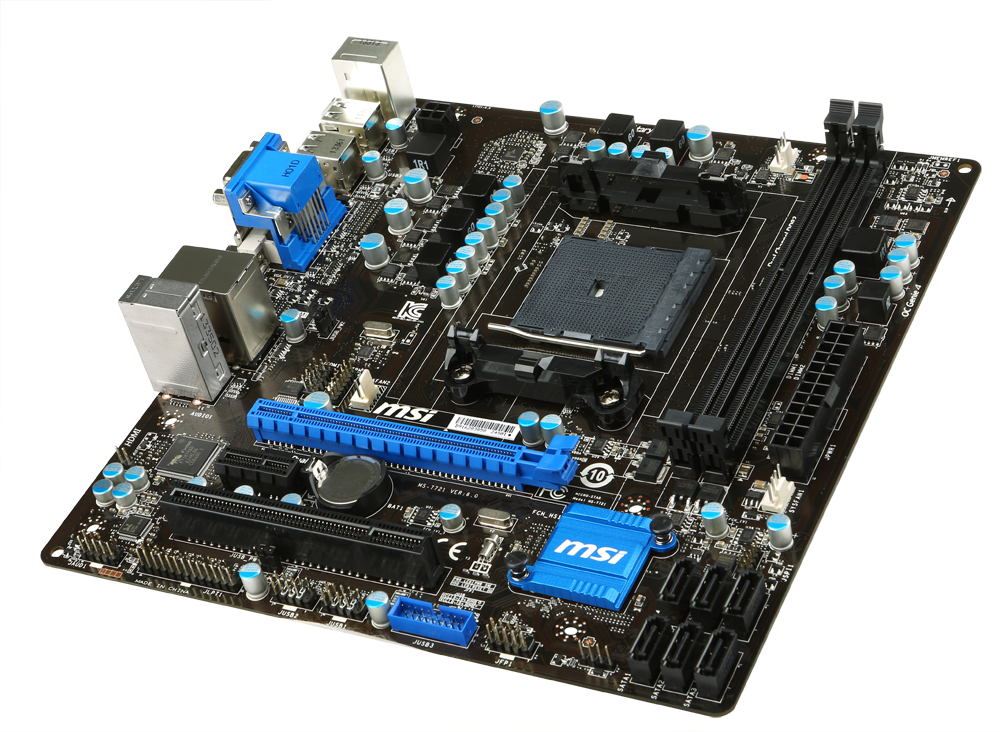
With that aside, the A88XM-E35 sits as a $68 FM2+ motherboard with two DRAM slots, a PCIe x16, x1 and PCI slot, six SATA 6 Gbps ports, HDMI output and support for four USB 3.0 connectors. The Ethernet and audio codec are made by Realtek, and the board has three fan headers, two of which are 4-pin. Even at $68 there is some styling, with the PCB in black and single color slots except for the PCIe 3.0 x16.
Over the last couple of MSI motherboard reviews, I have been critical of the lack of development in the BIOS and some issues in the software. These are starting to be addressed with the MSI A88XM-E35, and given the nature of software, I would imagine on other MSI FM2+ products as well. This includes navigation guidance in the BIOS, retaining the fan controls, and disabling the ability to ramp up the CPU to 1.8 volts in the operating system with a simple mouse movement. We still have access to the RAMDisk and OC Genie as part of the software, as well as the visual fan controls and system browser in the BIOS. The next stage would be better organization of the overclock options in the BIOS, however MSI has disabled voltage control on this motherboard. This is probably due to the low cost nature of the system.
MSI rated this motherboard as Military Class 4 (optimized components, better chokes and capacitors) but, rather amusingly, when installing the wallpapers from the CD, the Military Class III wallpaper shows up. With the Live Update 5 software we still have one of the best audio-updating systems, but we still need MSI to add in download sizes before selecting what to download. I mention this as the updated chipset drivers from MSI were 620 megabytes, and Live Update 5 did not recognize that I had the same ones installed. The latest version of Live Update 5 has issues with FM2+, and thus the version on the CD is recommended.
Performance (with the extra fan on the power delivery) from the MSI motherboard has it fighting each benchmark with the bigger, more expensive products. The benchmark scores overall seemed around average, although WinRAR was actually particularly low. The ALC887 audio codec shares performance with the ALC892 on the bigger motherboards, but is limited to 2.1 speaker setups. Despite being a smaller motherboard there is no reduction in power consumption at idle, and USB performance is lower than average.
Compared with the $105 motherboards we have tested previously, we have to consider if paying an extra $37 (~54%) makes sense for better power delivery and a few extra features. But for $68, as a motherboard to put an APU in, 16GB of DRAM and the MSI software ecosystem, as long as you add an extra fan, it does seem to offer good value.

Visual Inspection

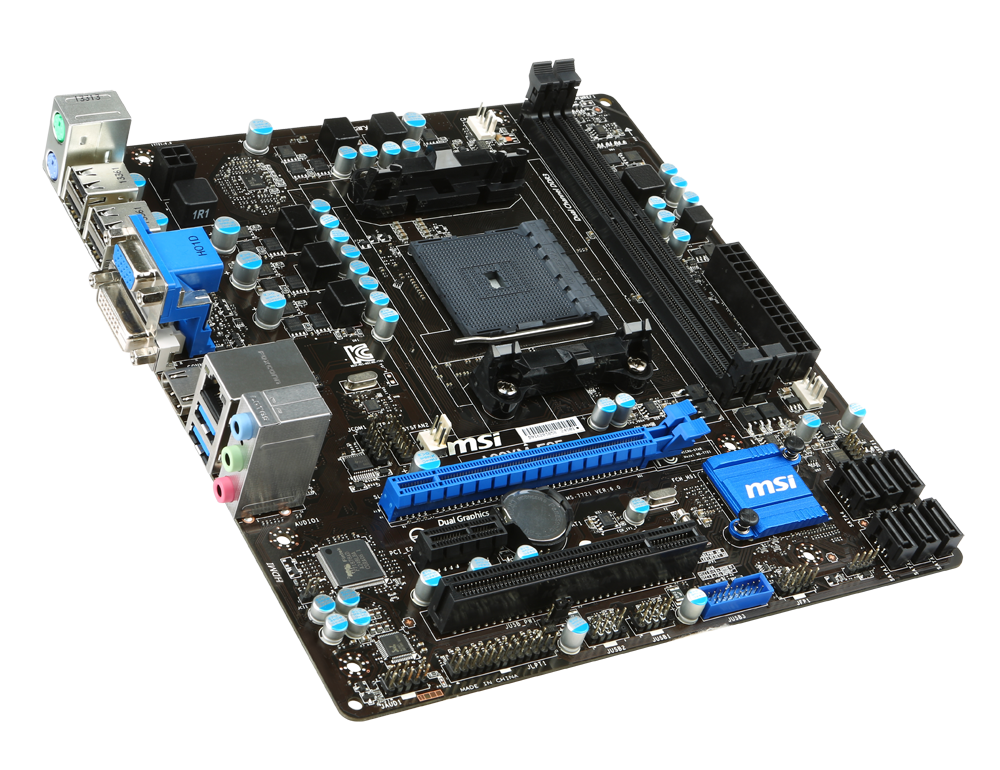
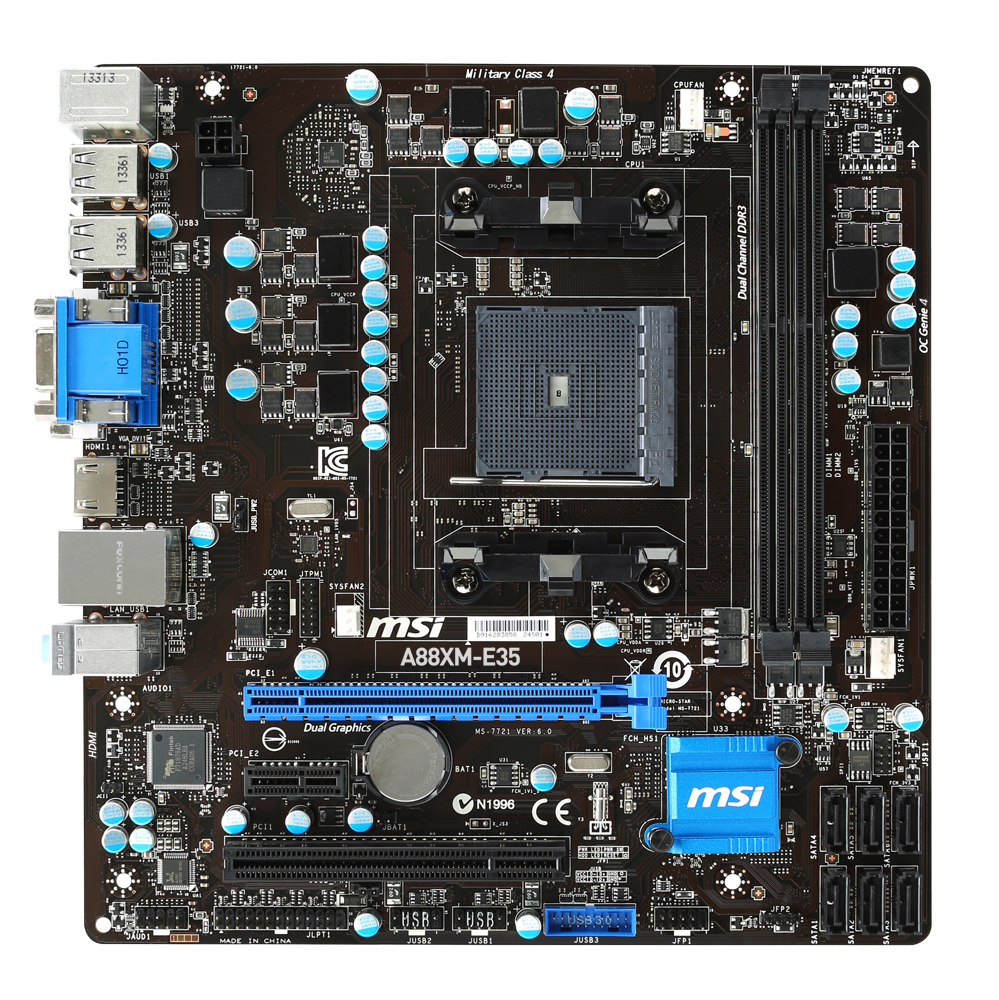
The first thing I noticed when taking the motherboard out of the anti-static bag was the lack of a power delivery heatsink. Perhaps it is because I have been reviewing motherboards >$85 for the past three years, but to see a motherboard without such a heatsink seems almost alien. MSI are using a simple 4+1 phase design, but given the heat generation issues we have seen with Kaveri so far, I would have preferred at least a $0.50 effort rather than the attempt to make the motherboard look cleaner with a black PCB finish.
As always, the AMD socket area is actually quite big. The lack of a heatsink does offer more room for larger, more intrusive CPU coolers. At this point I would suggest one that does blow over the heatsinks, given the issues we encountered. We are right up against the two DRAM slots on the right, which both use dual-sided latch mechanisms. Normally on cheaper products we end up with the thinner DRAM memory slots, but MSI are using the thicker studier ones on the A88XM-E35.
In terms of fan headers, this motherboard has three all within reach of the socket area. The CPU fan header is a 4-pin and found at the top of the motherboard beside the DRAM slots. There is also a 4-pin SYS header beneath the 24-pin ATX connector, and a 3-pin SYS header to the bottom left of the socket.
On the right hand side of the motherboard, alongside the 24-pin ATX connector and 4-pin fan header are the six SATA 6 Gbps ports. Normally we find these arranged at right angles to the motherboard, but due to cost saving these are individually planted perpendicular. There is no alternating mechanism to allow right angled SATA connectors apart from the far edge, and users with triple slot GPUs will have issues with three of the SATA connectors, but for the intended market we have plenty to play with.
Along the bottom of the motherboard we have the audio header (Realtek ALC887), a printer port header, two USB 2.0 headers, a blue USB 3.0 header and the front panel header. The PCIe layout gives one full Gen 3.0 x16 lane in blue and a PCIe 2.0 x1 from the chipset, followed by a PCI port. Above these ports is a TPM header along with a COM header.
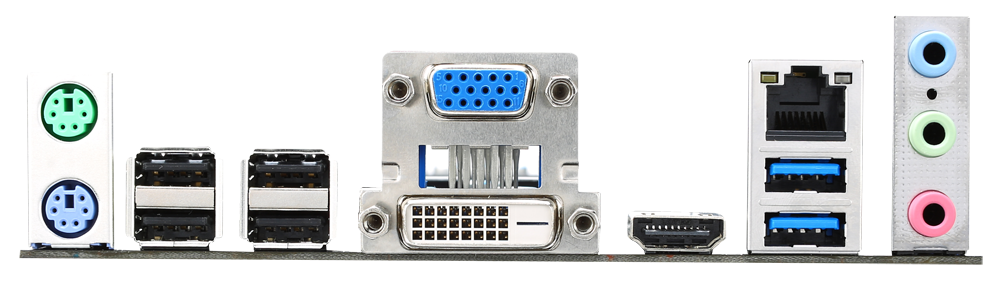
Given the price point of the motherboard, the rear IO is expected to be sparse, but we do get separate PS/2 connectors for a mouse and keyboard, four USB 2.0 ports, DVI-D/VGA/HDMI outputs, two USB 3.0 ports, a gigabit Ethernet port (Realtek) and audio jacks.

Board Features

MSI A88XM-E35
PriceLink
SizeMicro-ATX
CPU InterfaceFM2+
ChipsetAMD A88X (Bolton D4)
Memory SlotsTwo DDR3 DIMM slots supporting up to 32 GB
Up to Dual Channel, 1333-2133 MHz
Video OutputsD-Sub
DVI-D
HDMI
Onboard LANRealtek
Onboard AudioRealtek ALC887
Expansion SlotsPCIe 3.0 x16
PCIe 2.0 x1
PCI
Onboard SATA/RAID6 x SATA 6 Gbps, RAID 0,1,5,10
USB 3.04 x USB 3.0 (Chipset) [2 back panel, 2 via headers]
Onboard6 x SATA 6 Gbps
1 x USB 3.0 Header
2 x USB 3.0 Headers
3 x Fan Headers
1 x LPT Header
1 x COM Header
1 x TPM Header
Front Panel Header
Front Audio Header
Power Connectors1 x 24-pin ATX
1 x 4-pin CPU
Fan Headers1 x CPU (4-pin)
2 x SYS (4-pin, 3-pin)
IO PanelPS/2 Mouse Port
PS/2 Keyboard Port
4 x USB 2.0
2 x USB 3.0
D-Sub
DVI-D
HDMI
Realtek NIC
Realtek Audio
Warranty Period3 Years
Product PageLink
Given the low price point, I was not expecting anything spectacular in terms of connectivity, so the single NIC and normal chipset SATA/USB connectors are understandable. The chipset should afford eight SATA 6 Gbps ports, but only six were present – it might have been worthwhile adding a pair of eSATA ports on the back. I would have also liked to see a clear CMOS button, even a very basic one. I am sure MSI buys these in bulk and it would not have been too hard to implement.
Read more ...

Thursday, April 3, 2014

Keyboard & trackpad issue


We have an Acer Travelmate 5735 with a keyboard and trackpad issue. Both work in the BIOS and boot selector but don't work in Windows or an bootable OS environment (Linux, Windows PE etc).

We have upgraded the BIOS, reset CMOS and re-seated both cables. Since the BIOS upgrade both devices show in device manager but as problem devices. A USB keyboard and mouse work fine.

Any ideas or is this a motherboard fault?

Comments:

1. I'm not sure how it could be a hardware fault if it works in the BIOS.

Are you sure it hasn't just been disabled or turned off? What error code does Device Manager give?

If device manager shows a resource conflict, look for an option in the BIOS that allows you to reset the Plug and Play device resource allocation.


Its certainly a very strange issue.

2. Device manager in Windows (show hidden devices) gives the error message...
This device is not present, is not working properly, or does not have all its drivers installed (Code 24)

The keyboard works in the BIOS and boot menu, but doesnt work in Windows Boot Manager (select safe mode for instance). The laptop BIOS is very very basic and has no settings that can be changed for IRQ or PlugnPlay.

Booting an Ubuntu CD and neither work only USB mouse and keyboard. Tried to install Windows on a fresh hard drive and keyboard and mouse don't work when booting the Windows 7 DVD.

sounds like a mobo fault to me. In Most bioses you are only going to use the arrow keys and maybe enter. I bet with a keyboard diagnostic running you'll find that even in Windows those key are working and nothing else.
3. Did you recently replace the component. I've seen a couple of times where both are on one ribbon cable. It doesn't make sense that both are bad (at the same time?)

4.We have stripped the laptop down, removed all non essential parts (optical, wireless etc) and tested with just the keyboard connected and then just the trackpad (separate ribbon cables) but still the same.

We tried the function button on the keyboard.

Will try leaving the power and battery out over the weekend but I think it will end up being the motherboard.

Its a day of very strange issues, had an Outlook account earlier on a new computer that was constantly updating the address book, turned out to be the wireless keyboard driver needed updating???


Read more ...

Need a low profile low power video card


Hi,

I need to find a very basic graphics card just so that I can have two monitors extend my desktop. This computer (HP dc5800 SFF) has a 240 watt power supply. I need to find a very basic graphics card that supports dual-display but does not require anything more than a 240 watt supply.

I am looking for PCI Express x16. The motherboard specifications also show that PCI Express x1 and PCI are also options (http://www.findlaptopdriver.com/3646...pecifications/). It needs to be low profile, but low profile ready would probably be a better option.

Any suggestions besides replacing the PSU?

Thanks in advance

comments:
I've had good luck with EVGA 01G-P3-1302-LR cards. I've put them in plenty of machines with a sub 300W power supply with no problems. They come with low profile brackets. 
Go to partsurfer.hp.com. Put in the HP model number off of the serial number sticker - in the form of aa123aa. HP usually lists all available parts for each model including options. Being generic type parts from a major OEM you should be able to find decent prices.


Read more ...

Hard drives failing - be proactive?


Hey all

We get a hell of a lot of hard drives come in failing way past they become useful to clone and repair (any corruption or damage) and I was thinking about proactive monitoring or alerts so we can catch it early.

So far SMART doesn't seem all that useful - out of 100 drives that seatools or western digital life tools (or whatever its called) detects as failing/failed only 1% will seem to trip the SMART status. Even non-bootable machines seem to not trip SMART lol...

Acronis drive monitor seemed perfect - until it started scare mongering into buying acronis products and generally being pants. 

Simply an email will do, or even a warning message to the user (not really the best way forward as half of them will just ignore it and carry on storing their life memories onto a terminally ill machine...). I was looking at GFI or similar for the future but even this relies of SMART I think.

If there are no recommendations, don't be afraid to have a discussion - its our most common repair but also our most ranging in difficulty (some we can clone, checkdisk/SFC and all is fine, whereas others won't even clone or if they do...its in vain)

comment:
1. For residential/desktops.....not sure how effective of a tool you'll be able to find. As you noticed...S.M.A.R.T. ain't all that reliable. Been tossing false flags since it came out way back in the Win95 or Win3 or earlier days. And when a drive really does die....SMART rarely knows about it.
2. Foolish's Disk Health Monitor relies on disk events, not SMART, so maybe it will be of some help. It can e-mail you or the client a notification.
3. Seems like a very useful tool. I am gonna check it out and test it.

4. Too bad it's for non-commercial use only (I am a big fan of Nick's products, but don't need dSupportSuite so this is out for me):

License:

Personal use: Disk Health Monitor is FREE for personal use only if you acknowledge that this program is provided with no warranties or guarantees of any kind, and that you (not John N. Shaw, not Foolish IT, LLC, not my web host, not your ISP, not your mother) and only you are held as the bearer of sole responsibility for any use or misuse of this software and any resulting damages in any form, monetary or otherwise. If you do not accept this policy but are still compelled to use the software, there is a small one-time licensing fee of 10 million dollars.
Commercial use: Disk Health Monitor cannot be used commercially, period.
See dSupportSuite for commercial functionality.


5. I believe it to be very important to regularly test hard drives to ensure that they are stable, but I don't think there is a monitoring tool that is going to safely predict a failure before it happens any better than SMART monitoring. As you have already noted, most drives just fail without warning...usually with the assistance of the end user bumping or dropping the device.

So, it makes more sense to be more proactive about solid backup routines and monitor them.

I have had to recover data on drives that crashed during testing. I've done data recovery on drives that were backed up, to find out that the backup was outdated or not backing up the data that it should have.

There is only one case where I did a data recovery for someone who had a solid healthy backup. Unfortunately, it was an online backup that was encrypted with a forgotten key with no back door. He could log into the web interface to see his data listed, but the only way to restore the backup was by installing the software on a fresh system, enter the encryption key and restore.


6. So really there is no way other than to ensure the drive is making good healthy regular images. I notice that Nick's marked that drive monitor as obsolete   is that due to it being integrated into the support suite I wonder.
Read more ...
THam khảo: Đầu thu DVB T2 | giàn phơi, lắp đặt giàn phơi quần áo hay giá giàn phơi thông minh tốt nhất cả nước