Scrolling box

computer hardware

Breaking News

Social Icons

Recent Comments

Showing posts with label lap top. Show all posts

Friday, April 4, 2014

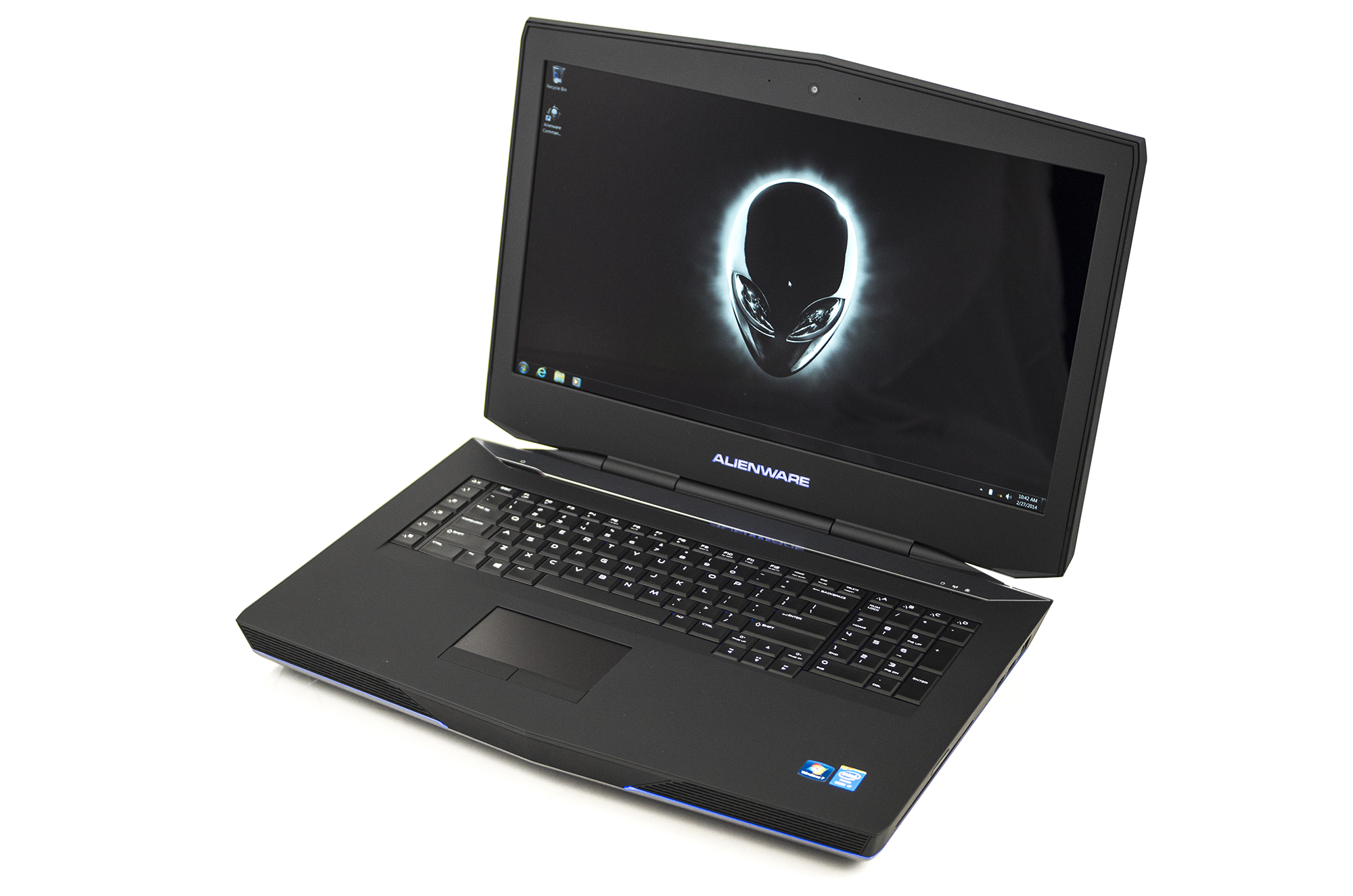
Alienware 18 Gaming Laptop Review

Game Rant is only starting to get into looking at gaming rigs for hardware reviews, partly of it is because PC gaming is bigger than ever and continuing to grow. Just look at the amount of available games over the holiday season versus what came out on the old and new gaming consoles and look how popular Minecraft and Free-to-Play games are on PC (Warframe, League of Legends, etc.). Many of these are making their way to consoles, but PCs still offer the highest graphics potential, the largest feature sets.
Of course, for the growing popularity of generating Let’s Play videos or livestreaming gameplay, PC is still #1. Before the new year, we looked at a desktop gaming center from Lenovo and for our next review we’re looking at something a little more mobile in a gaming laptop – “little” representing the keyword.
Alienware has long been in the game of offering powerful and custom gaming hardware for players, and now under the umbrella of Dell (since 2006), they’re still doing what they can to offer eye-grabbing machines that offer incredible power. If you’re a PC gamer, Alienware should be a familiar brand and if you’ve been to video game trade shows and events, chances are you’ve seen and played on their hardware. One such machine is the Alienware 18 laptop, or as we like to call it, “the beast.”
Alienware 18 Gaming Laptops
The video up top does a fair job of describing the power and specs of the Alienware 18 – a machine we were able to spend several weeks with – and it comes in multiple tiers ranging from the low $2000s to above $4000 depending on what you’re looking for, all of them featuring 1080p, 4th Generation Intel Core i7 Processors, Windows 7 Premium (you can upgrade to Win 8) and all of them coming with the brand’s signature AlienFX Lighting Zones. The video also talks about some of the Alienware 18 highlights, from cooling, extra keyboard functions and the built-in Alienware control center software.
It doesn’t however mention the most obvious aspects of the beast laptop – it’s size. When we first got hands on with the Alienware 18 we called it a monster, and not because it’s more powerful than most of the desktop PC workstations and gaming centers we use, but because it’s massive. Even the power brick is huge. Almost too massive to be truly portable. Think of it as a thinner desktop that lays down sideways and has a built-in keyboard and monitor – that’s essentially what it is.
PC gamers who need the most extreme power available, who travel to LAN events or for whatever reason need portability of a workstation that can play the most demanding software may have their answer in the larger Alienware laptops. Just don’t actually put it on your lap.
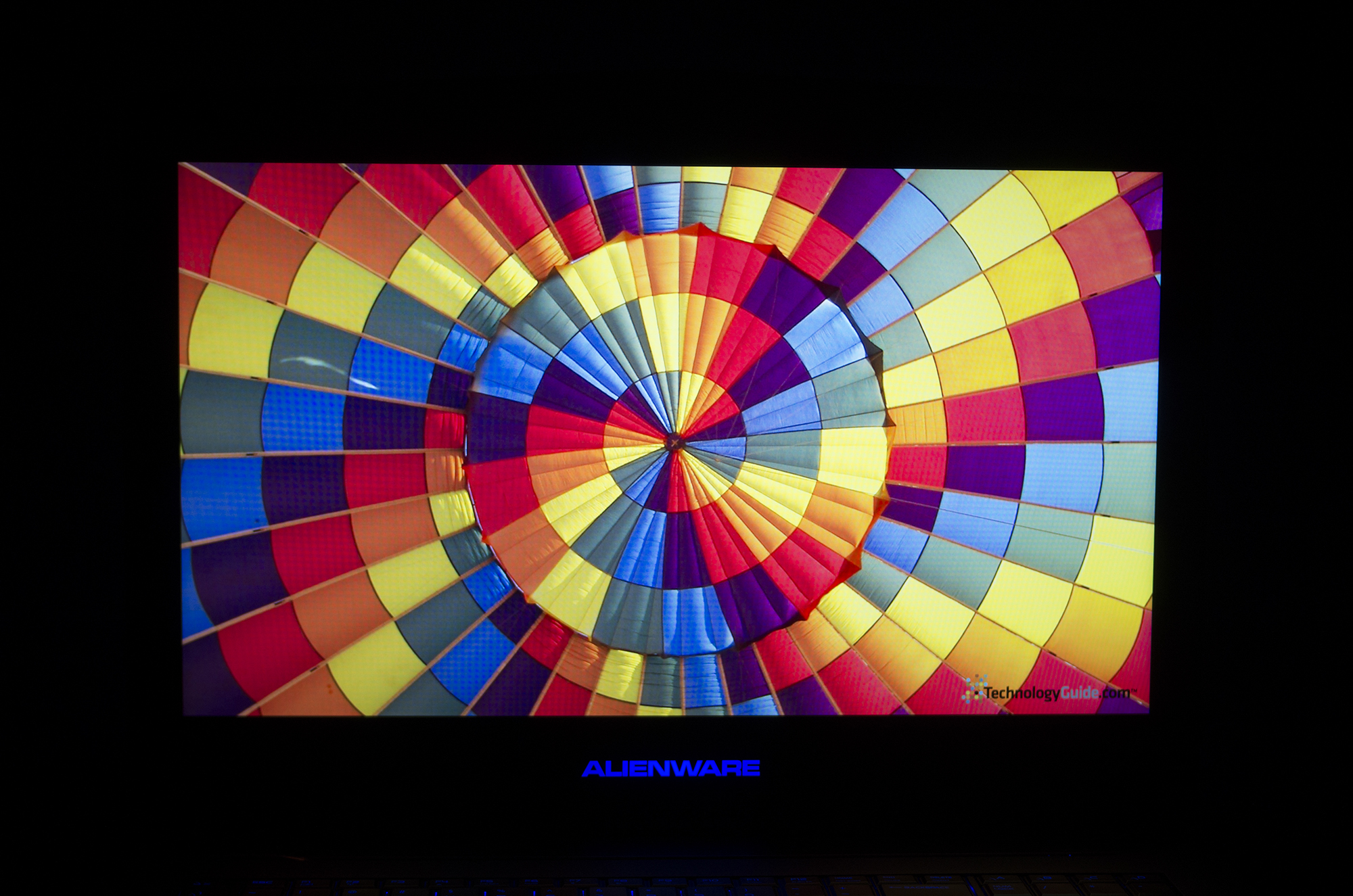
Alienware 18 Photo Red Screen
The Alienware 18, since it’s gaming focused, still uses the more gamer-friendly Windows 7 (Home Premium) by default. We tested Battlefield, MechWarrior Online, the Star Citizen hangar module, Minecraft and MMOs including Neverwinter and World of Warplanes without a hitch at the best possible settings. Frame rates kept at or above 30FPS when using recording software applications including Bandicam and Fraps at 1080p, making the machine that much more appealing to YouTuber ‘Let’s Players’ or gamers who livestream their gameplay via Twitch or Ustream. It does all of these things as best as they can be done on a laptop.
The drawbacks on the hardware side come from the form factor and not the insides. If you’re buying an 18-inch laptop, the expectation is that it’s going to be oversized in terms of width, but the thickness of the machine is a big turn off. With its 2.26″ thickness, using the Alienware 18 means that you’re typing and playing on a keyboard that sits 3x higher on your desk. It can be uncomfortable for your wrists and forearm. The design is too big and appears dated when putting it (or its slightly smaller Alienware 17 counterpart) side-by-side with the 17-inch gaming laptops from Razor (the 17-inch blade is .88 inches thick) and MSI’s even thinner GS70 (0.85 inches thick).

Dimensions & Highlights

  • Height: Front: 2.23 in (56.71mm) Rear: 2.26 in (57.50mm)
  • Depth: 12.909 in (327.89 mm)
  • Width: 17.972 in (456.50 mm)
  • Starting at weight with optional SSD: 12.064 lbs. (5.472 kg.)
There are four USB ports, two on each side, for all your gaming accessories, and an Ethernet port in case you need it for LAN. With the amount of options, the Alienware easily earns its spot at the center of a gaming room, with plenty of room to attach peripherals. For us, that meant gaming mice, a Logitech joystick, the Razer Tartarus Gaming Keypad, etc.
Alienware 18 Photo - Side Orange Lighting
The Alienware 18 comes with plenty of options and users can opt in to upgrade various elements, most notably the RAM up to 32gb. There are two video card options with the higher tier one being the Dual NVIDIA GeForce GTX 770M with 3GB GDDR5. Our model features the lesser GTX 765M with 2GB GDDR5 and it can play and and all currently available games but the 3GB options helps future proof the already-impressive hardware.
As for the software, the loaner unit we tested came with super-popularLeague of Legends pre-installed and we of course took it for a run with a variety of games mentioned above. Unique to the Alienware brand however is the Alienware Command Center. It’s insanely easy and fun to use, allowing users to customize the lighting of their machine by section. The keyboard for instance has five areas that can light up in any color they choose from a color wheel. It even allows for color patterns (i.e. pulsing lights). The lights on the exterior sides and even the Alienware logo can be given different colors as well, further emphasizing the Alienware 18 (and other-sized models) as gaming showpieces.
The Alienware Command Center isn’t just about pretty AlienFX lights however, as it also includes systems for setting up macros (for the extra macro keys on the keyboard), customizing power plans and the touchpad (which also lights up). The AlienAdrenaline system also lets advanced users setup custom profiles for their games and applications, letting them pre-define performance and display settings for each app.
The Alienware 18 may be too big and too pricey for the average user but it’s not designed for the average user. It’s top-of-the-line specs, over-the-top lighting features and oversized everything make it unique and powerful and that’s what it wants to be. We really do wish it was thinner for keyboard-use reasons but it can do anything and everything a PC gamer would want from a high-end machine, for an equally high price.
The Alienware 18 is available now in a variety of models. Find out more from the official site here.
Read more ...

Dell Alienware 18 review in Cnet

The Good Dell's Alienware 18 is highly configurable, with dual video cards, tons of RAM and storage space, and an understated design that you won't hate.
The Bad The thick body raises the keyboard uncomfortably high, and getting primo parts costs a lot. Battery life is predictably poor, and this would have been a prime candidate for a better-than-HD screen.
The Bottom Line There's a premium to be paid, but the massive Alienware 18 is a show-off-worthy desktop replacement that takes down even the newest PC games, and is just plain fun to use.
Sometimes nothing will satisfy quite like a desktop-dominating monster with an 18-inch screen and a body built like a tank. After a couple of years of ultrabooks and hybrids, it's surprising how much fun a huge PC, one that barely qualifies to be called a laptop, can be.
That's the appeal of the Alienware 18, a rare entry in the oversize gaming laptop space. It's even more of an outlier now, as 2013 has seen an influx of smaller gaming laptops, from the Alienware 14 to theOrigin EON13-S to the Razer Blade 14 .
Now, it's clear that Alienware parent Dell stacked the deck by sending us a system configured with nearly every high-priced upgrade possible. The Alienware 18 starts at $2,099, and can be ordered with either Windows 7 or Windows 8. Our review configuration included an upgraded Intel Core i7 processor, a 512GB solid-state drive (SSD)/750GB hard drive storage combo, two Nvidia GeForce 780M graphics cards, and a whopping 32GB of RAM, possibly the first time we've tested a laptop with that much memory. The cost? A budget-breaking $4,249.
Sarah Tew/CNET
And for that healthy investment, you get enough power to play games such as the brand-new Battlefield 4 from EA at the highest "ultra" settings at the system's 1,920x1,080-pixel native resolution. (Although, with higher-res screens coming to smaller laptops now, is it too much to ask for a Retina-style display on a gaming rig?)
If you're looking to spend this kind of money on a gaming laptop, rather than building your own desktop, the choice is often between a big brand such as Dell's Alienware, or something from a boutique PC maker such as Origin PC or Maingear. A closely configured Origin 17-inch laptop costs about the same, and the biggest choice you'll have to make is whether you go for the custom design and chassis quality only a big company such as Dell can afford to develop, or the boutique-level hands-on customer service and overclocking you can get from a smaller PC gaming specialist.
Despite my love for small, slim, sleek laptops, the massive 18-inch screen won me over, and the Alienware 18 is a great way to take advantage of the current PC gaming renaissance we're experiencing right now. You really have to load on the expensive configuration options to make the system shine, but if you have the budget, a fully tricked-out Alienware 18 is an impressive gaming monster that manages to not look too much like a "gaming" machine.
table.geekbox th{background-color:#E6ECEF;text-align:left;font-weight:bold;} table.geekbox tr.even{background-color:#CCCCCC;} .ratingGood{color:#093;} .ratingAverage{color:#666;} .ratingBad{color:#C00;}
Alienware 18Alienware 17Toshiba Qosmio X75-A9278
Price$4,249$2,699$1,899.99
Display size/resolution18-inch, 1,920x1,080 screen17-inch, 1,920x1,080 screen17.3-inch 1,920x1,080 screen
PC CPU2.8GHz Intel Core i7-4900MQ2.7GHz Intel Core i7-4800MQ2.4GHz Intel Core i7-4700MQ
PC memory32GB 1,600MHZ DDR3 SDRAM16GB 1,600MHZ DDR3 SDRAM16GB 1,600MHZ DDR3 SDRAM
Graphics(2) 2GB Nvidia Geforce GTX 780M4GB Nvidia Geforce GTX 780M3GB Nvidia Geforce GTX 770
Storage512GB SSD + 750GB HD256GB SSD + 750GB HD256GB SSD + 1TB 7,200rpm hard drive
Optical driveBD-ROMBD-ROMBlu-ray/DVD writer
NetworkingGigabit Ethernet, 802.11ac wireless, Bluetooth 4.0Gigabit Ethernet, 802.11ac wireless, Bluetooth 4.0Gigabit Ethernet, 802.11b/g/n wireless, Bluetooth 4.0
Operating systemWindows 7 Ultimate (64-bit)Windows 7 Home Premium (64-bit)Windows 8 (64-bit)
Design and features
A thick, matte black slab that recalls the space obelisk from "2001: A Space Odyssey," this system is so massive that its form even overwhelms Alienware's typical kitschy light show. Closed, it absorbs light, not quite blending into the background, but as unassuming as a $4,000 gaming laptop can be. Make no mistake, however. This is still a thick, heavy, black laptop with colored lights and an alien head logo on the back of the lid, but it feels very high-end in the hand, with rock-solid construction and a soft-touch finish.

A laptop? Technically speaking. Portable? Only in the broadest sense of the word. The Alienware 18 weighs a back-breaking 12.3 pounds without its bricklike power cable, and 15.5 pounds with it. At 2.3 inches thick, it feels as if the keyboard and touch pad are hovering over your desk rather than resting on it.
Sarah Tew/CNET
That issue creates one of the major ergonomic problems I had with the system. The lid itself is thick, so the keyboard sits 1.75 inches above the table, versus less than a quarter of an inch for many slim laptops. For gamers who spend a lot of their time with fingers poised on the WASD keys, that can mean your arm and wrist are raised at an awkward angle. If you need a refresher on computer ergonomics, you generally want your keyboard and mouse setup lower down, so that your elbows are at a 90-degree angle or lower.
Because the chassis is so large, the standard-size keyboard is set well back from any of the edges. The front lip is especially sharp, angled at more than 90 degrees, and I found my forearm resting uncomfortably at the edge because of both how far back the keyboard was placed and the extra height of the system.
Aside from that, the keyboard and mouse will be familiar to anyone who has seen the current-gen 14-inch and 17-inch Alienware systems. The large keys are tapered slightly at the top to avoid accidental keystrokes. They have a satisfying depth and the large Shift, Control, and other keys often used in PC gaming are placed well for in-game use. A row of user-definable shortcut keys is just to the left of the keyboard, and full number pad is to the right.
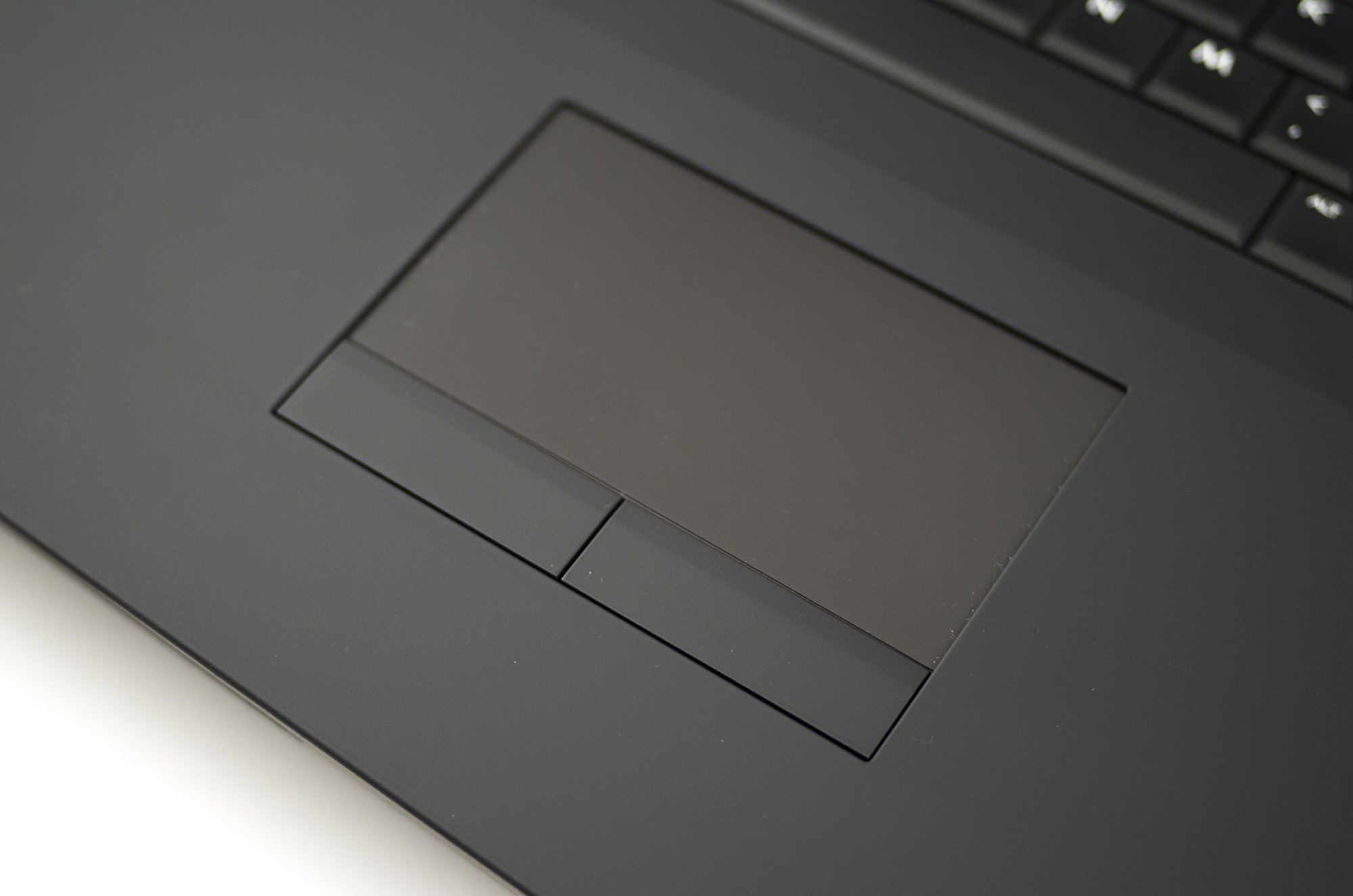
The backlit touch pad is a good size, and keeps separate physical left and right mouse buttons, rather than using a newer clickpad-style surface. But for gamers, it's probably a moot point, as you're likely to use an external mouse for all your serious gaming.
As is expected from Alienware, the chassis lights up in all sorts of interesting ways, with a backlit keyboard, the Alienware logo, a light-up alien head on the back of the lid, and a few more zones. All of these can be controlled from the Alien FX control panel, a software app that allows you to choose from preset themes or create your own, with different colors for each backlit zone. As on the 14-inch version we reviewed recently, the touch pad is fully backlit, can glow in any of a couple of dozen colors, and lights up when touched.
Sarah Tew/CNET
If you're investing in an 18-inch laptop, the display is one of the things you're going to be the most interested in. In this case, it's a 18.4-inch display, with a full 1,920x1,080-pixel native resolution. The IPS display is glossy (while the Alienware 14 we tested had a matte display) but it wasn't overly reflective, as long as you're willing to shift around or turn off any offending lights. Playing games pushed all the way to 1080p resolution is stunning, especially games with a lot of eye candy. Unlike some of the smaller gaming PCs we've seen recently, you won't feel the need to connect this to a bigger external display. Note that, unlike the vast majority of new laptops, this is not a touch-enabled display.
One issue with the 18-inch screen is that 1080p may not be enough for the highest-end gamers any more. Smaller, less expensive systems, from the MacBook Pro to the Lenovo Yoga 2 to the Toshiba Kirabook, all have higher resolutions, up to 3,200x1,800 pixels. It might push the limits of the mobile CPU/GPU combo to allow greater resolutions, but if you're going high-end, and willing to spend more than $4,000, it could be something you'd want.
table.geekbox th{background-color:#E6ECEF;text-align:left;font-weight:bold;} table.geekbox tr.even{background-color:#CCCCCC;} .ratingGood{color:#093;} .ratingAverage{color:#666;} .ratingBad{color:#C00;}
Alienware 18Ports and connections
VideoHDMI and Mini DisplayPort
AudioStereo speakers, (x2) headphone, (x1) microphone jacks
Data3 USB 3.0, SD card reader
NetworkingEthernet, 802.11ac Wi-Fi, Bluetooth
Optical driveBD-ROM
Connections, performance, and battery
Even though the system includes both HDMI and Mini DisplayPort outputs, I suspect you'll rarely want to hook it up to an external display. You also get multiple audio outputs that can handle 5.1 audio. There are only three USB ports, so a gaming keyboard, mouse, and maybe an Xbox 360 game pad will eat those up quickly.

Read more ...

Alienware 18 Laptop Review

Alienware 18 Gaming Laptop
Today we are sticking with the 18" theme and on our test bench is the Alienware 18, a laptop/Desktop replacement which features high end Intel CPU and SLI'd 780M GPUs. We will be putting it through its paces in synthetic and real world tests including Battlefield 4 and Call of Duty Ghosts.


Packaging and Bundle
Today we are sticking with the 18" theme and on our test bench is the Alienware 18, a laptop/Desktop replacement which features high end Intel CPU and SLI'd 780M GPUs. We will be putting it through its paces in synthetic and real world tests including Battlefield 4 and Call of Duty Ghosts.


Alienware 18 box Alienware 18 packaging
Alienware 18 bundle
Alienware 18 power unit Alienware 18 inside
Alienware Vindicator Backpack Alienware Vindicator Backpack
Alienware Vindicator Backpack

It has been some time since we last looked at an Alienware system on HardwareHeaven and since then Dell (and Alienware) have been busy updating their product stack with some interesting items such as the all in one 27" XPS system and massive, but really cool, 18" tablet style system...
Alienware use familiar packaging on this system and that arrives in a more robust brown cardboard box for extra protection. Inside the system is encased in foam with the bundled items alongside and beneath.
As expected Alienware bundle documentation and software discs with their systems and looking at our PSU we find it is a Delta Electronics 330w model. For the battery it's a Li-Ion unit which is rated at 86Wh. Also worthy of note is that Alienware bundle a set of screws for adding in a 3rd hard drive, they are stored on the drive caddy, shown above, beside the battery.
Also an option is the Alienware Vindicator backpack which offers hard protection on the front, three significant internal compartments and various pockets, internal and external.
Read more ...

Alienware 18 Review (Early 2014 model)

Overview
PROS
  • Stellar performance
  • Good design and build quality
  • Beautiful display
  • Good keyboard and touchpad
  • Excellent cooling system
CONS
  • Glossy display surface
QUICK TAKE
The flagship of Alienware's fleet, the Alienware 18 sports an 18.4" IPS display, factory overclocked Intel Core i7 processor and dual Nvidia graphics cards. You'll have a hard time finding a more impressive gaming notebook ... and even more trouble finding one that's larger.
IMGP8300Build and Design
Like other Alienware notebooks, the Alienware 18 features the AlienFX customizable LED lighting system. The notebook features several distinct lighting zones; the keyboard itself has four zones. Each zone can be set to pulse or morph between two colors. The system can be fully turned off if desired. It’s entertaining to use and a great way to personalize the looks.
Keyboard and Touchpad
The large touchpad has an excellent anti-glare surface and two physical buttons. The buttons are cushioned and quiet with good tactile feedback. The touchpad is also a lighting zone; users can change the lighting color or turn if off via the installed AlienFX application.
The largest notebook on the market, the Alienware 18 weighs an impressive 12.2 pounds and measures 2.2 inches thick. This notebook is all about performance; our review configuration includes a factory overclocked Intel Core i7 quad-core processor, 32GB of RAM and dual Nvidia GTX 780M graphics cards. Highlights of this notebook include its beautiful 18.4″ IPS display; performance supremacy for every kind of application; good keyboard and touchpad; AlienFX customizable lighting system; and finally its good speakers.
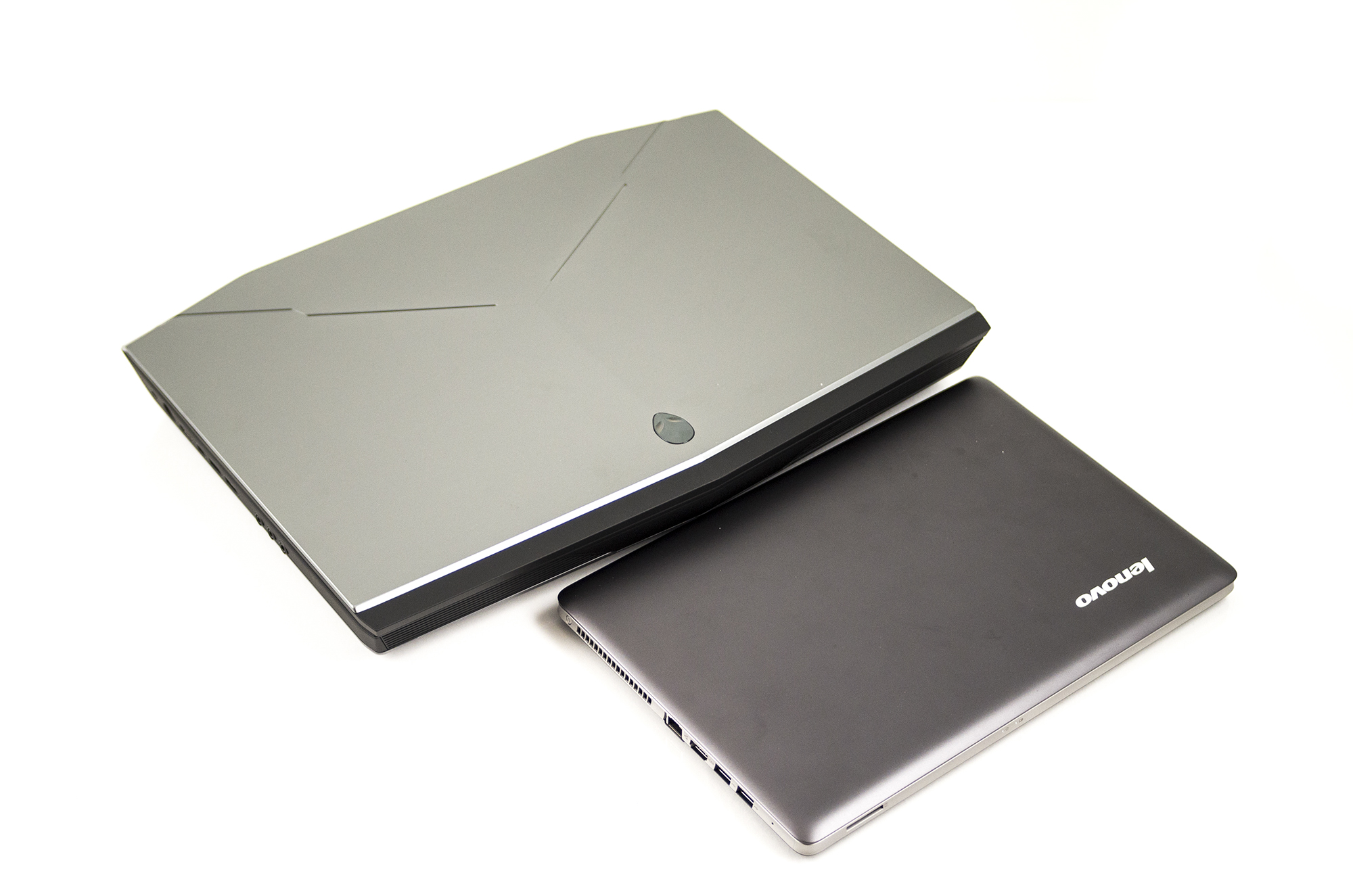
The Alienware 18′s angled exterior resembles a stealth aircraft. One aspect that stealthiness can’t hide is the physical size of this ‘notebook’ – it makes even 17.3″ notebooks look small. The chassis is 2.25 inches thick and all told weighs north of 12 pounds. It also can’t hide the three massive cooling vents that dominate the back of the chassis. The highest compliment I can give in terms of mobility is that this is still more portable than a desktop. However, the Alienware 18 looks ridiculously huge compared to a typical 13-inch notebook like a Lenovo Ideapad U310 (as pictured below).
IMGP8293
The matte black surfaces have a soft rubberized coating that hides dust and fingerprints well. Aluminum is also used below the display and on the back of the lid. The lid is exceptionally strong with almost no flex; it should protect the lid well during transport. The chassis is also equally free of flex. Fit and finish is excellent; gaps between parts are even and all edges are smoothly finished.
Input and Output Ports
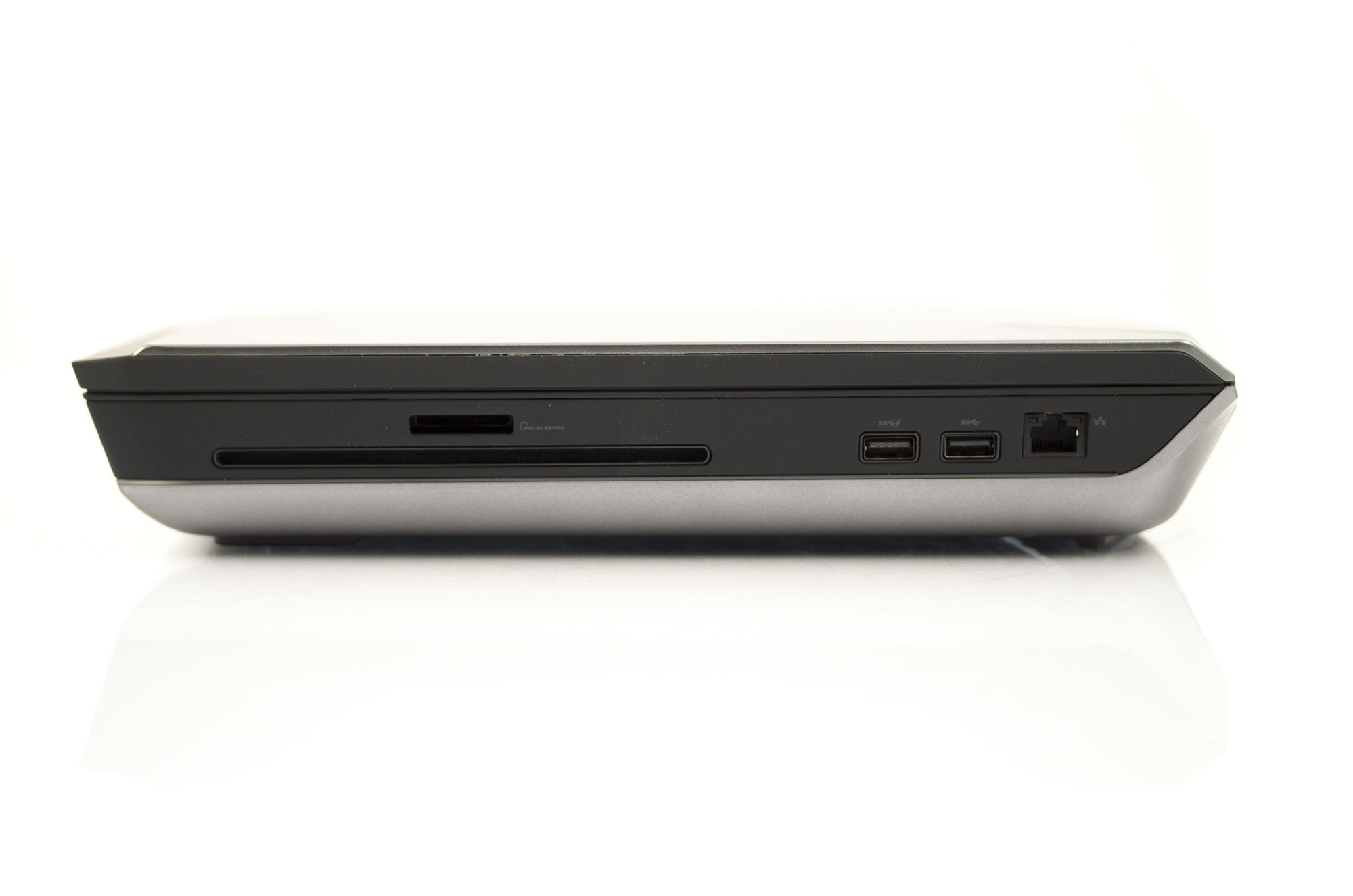
It’s expected that a desktop replacement as large as this one include all the ports you could possibly need. The Alienware 18 has everything from HDMI in/out to dual headphone jacks and a slot-loading optical drive. The font of the notebook is dominated by massive speaker grills while the back is loaded with equally massive heat vents. On the left side you’ll find a Kensington lock slot, AC power jack, HDMI in/out, mini-DisplayPort, two USB 3.0 ports, microphone jack, and two headphone jacks. Flip over to the right side and you’ll see a media card reader, slot-load optical drive, two more USB 3.0 ports and Ethernet.
IMGP8294IMGP8296
Screen and Speakers
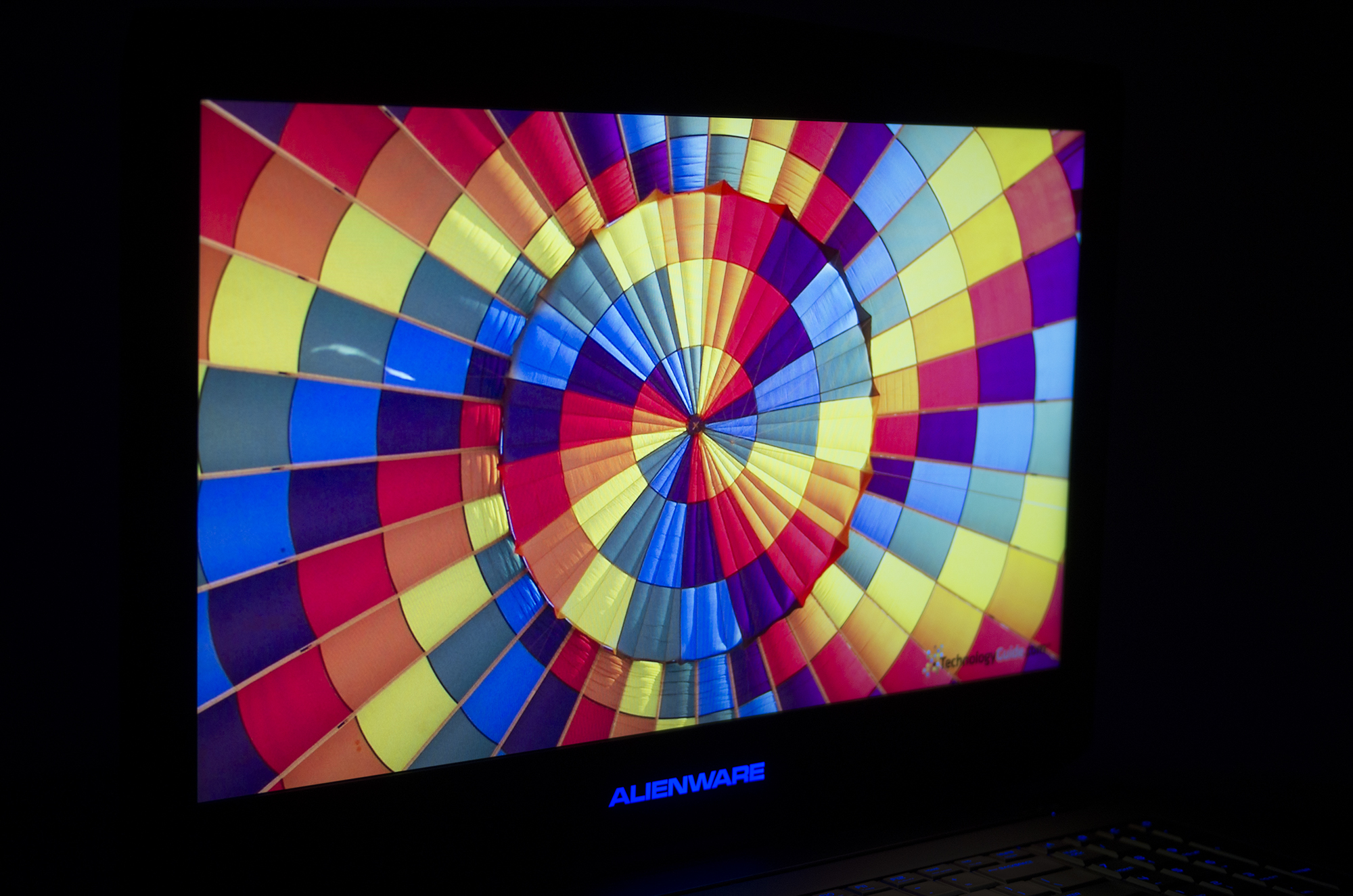
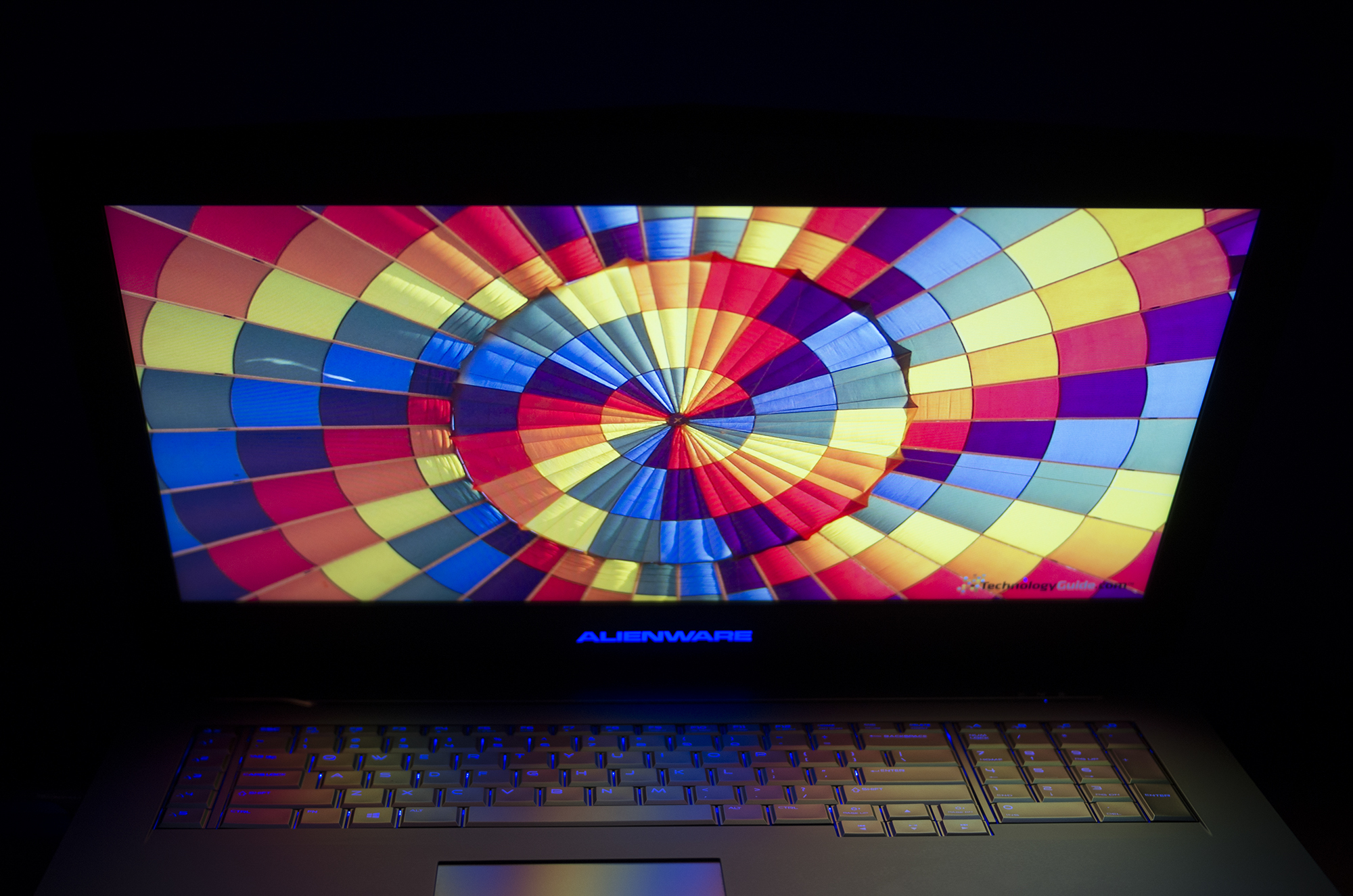
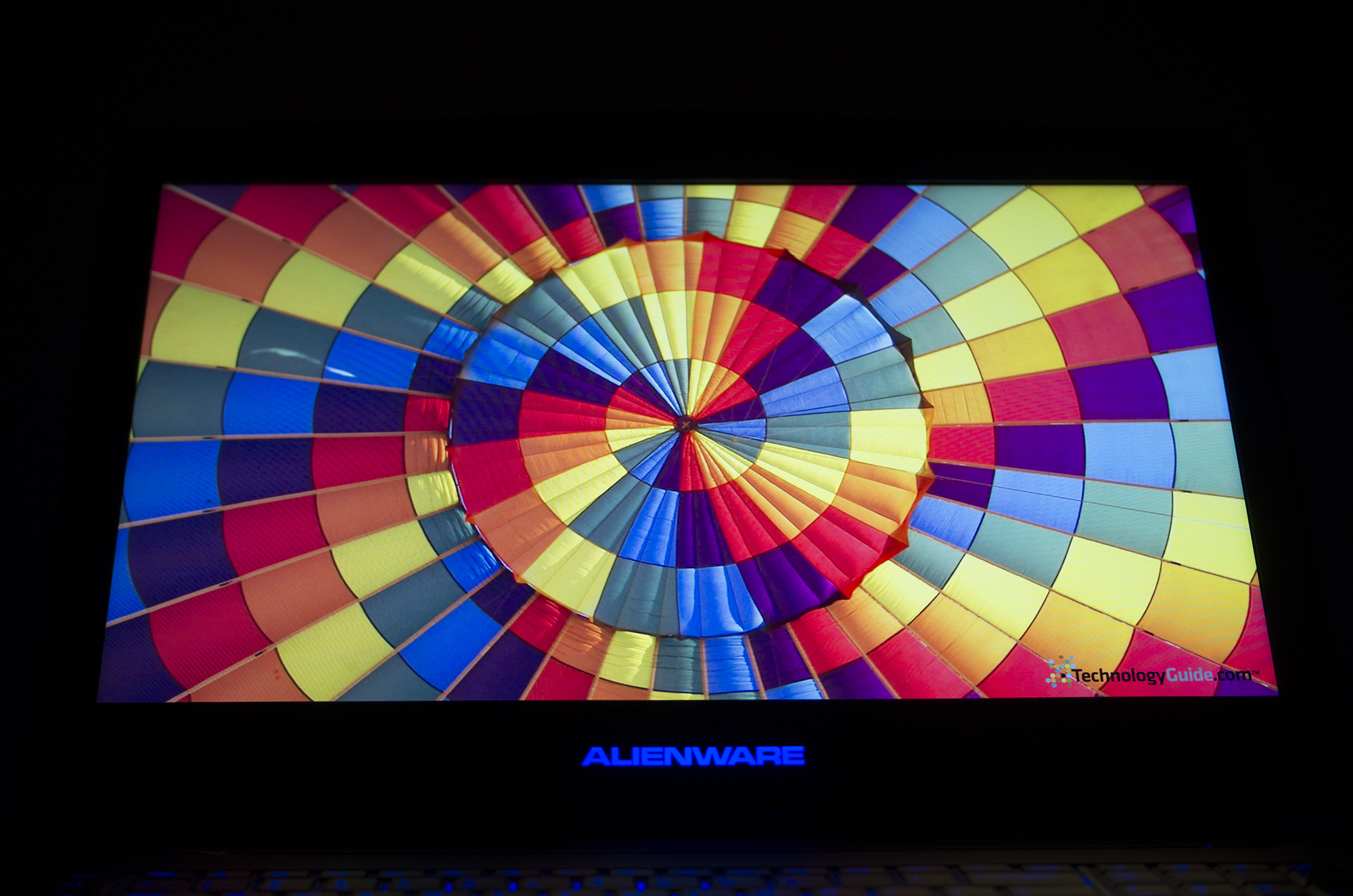
The standard 18.4″ display – the largest available on any notebook – has a FHD (1920×1080) resolution and glossy surface coating. It uses IPS (In-Plane Switching) technology which allows it to have unlimited viewing angles – the picture remains consistent even if you’re looking in from an angle. The picture quality is beautiful; lively, well-saturated colors and excellent contrast make looking at just about anything enjoyable, especially games and movies. The FHD resolution is great for playing games in high detail and for productivity, using two windows side-by-side.
IMGP8313IMGP8316IMGP8314IMGP8315
The sole issue with the display is its glossy surface coating; it acts as a mirror and produces annoying reflections from nearby light sources (especially if they are behind you).
The Alienware 18′s built-in speakers are from Klipsch; they produce noticeably fuller and louder sound than we’re used to seeing on a notebook and even have noticeable bass. They’re certainly good enough to entertain a few guests watching a movie or for gaming. Other ways to get sound out of the Alienware 18 include HDMI, DisplayPort and its two headphone jacks.
IMGP8298
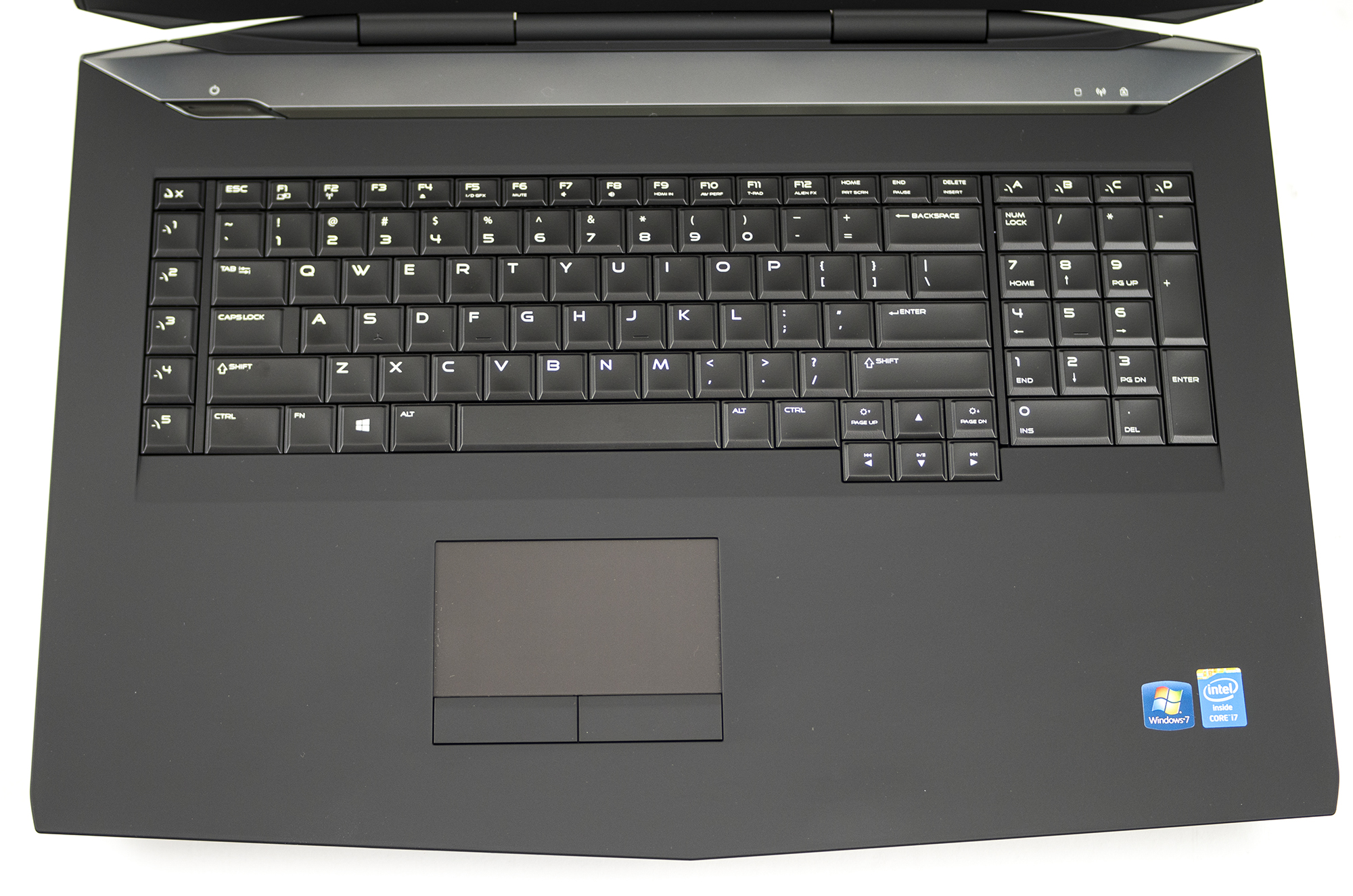
The Alienware 18’s full-size keyboard includes a separate numeric keypad and an additional row on the very left side for programming game shortcuts. The keys have LED backlighting which is situated into five separate zones; each zone can be just about any color or turned off completely via the AlienFX lighting system. Like the LED lighting on the chassis, the zones can pulse or morph between two colors as well.
The keys have ample travel for good tactile feedback. They have a soft slightly rubbery feel and are quiet enough for use in an office or library. The actuation pressure to press a key is enough that resting your fingers on them lightly won’t cause a key press. Another positive aspect of this keyboard is their smooth anti-glare finish which should resist wearing well over time. The keyboard layout is as expected. There is no keyboard flex.
IMGP8299

Read more ...

Wednesday, April 2, 2014

Toshiba Libretto 100CT Mini-Notebook Review

Overview
PROS

Small and compact
Good build quality
Reasonable battery life
Good performance

CONS

Expensive
Looks boring

QUICK TAKE

The Libretto 100CT delivers a powerhouse of mobile technology including a 7.1-inch LCD, Intel Pentium microprocessor with MMX technology, and more!
The new Toshiba Libretto 100CT features the latest in mobile technology including a 7.1-inch LCD, Intel Pentium microprocessor with MMX technology, a 2GB hard drive and 32MB of RAM. In short, $2,499 buys one of the hottest devices available for mobile productivity.
Build and Design
The Libretto 100CT’s exterior symbolizes a return to the classic, all-gray color scheme prevalent on computers from two decades ago. The squared-off design gives the 100CT its all-business look and feel. The chassis is both thin at 1.4 inches tall and light at just 2.35 pounds which is remarkable given the amount of technology and features packed inside. Consider that the 100CT is but a fraction of the size and weight of the mobile phones from the 1980s.

[Top_DS_1920] The plastic used in this notebook is of high quality and dyed all the way through, unlike the surface-coated plastics used on imaginatively-colored ‘modern’ notebooks. The build quality is strong; the chassis exhibits no flex and the lid resists twisting as well. The display hinge is sturdy and should withstand at least sixteen years of usage.
Input and Output Ports
In order to maintain its compactness, Toshiba divorced some ports to an included port expander as seen in the photos. The port expander can be connected or disconnected from the 100CT in less than 30 seconds. It adds essential ports such as parallel and serial. The RGB connector supports up to a 1024×768 resolution. All picture descriptions are left to right.


Left: no ports for the cleanest possible look


Right: infrared port; reset button, 2x PC Card slot w/ release levers


Back (with port expander installed): PS/2 mouse/keyboard port, 15-pin RGB connector, power jack, 9-pin serial connector, 25-pin parallel connector

Screen and Speakers
The 7.1-inch display is full color and made up of just fewer than one million transistors. It has an anti-glare surface and 800×480 pixels resolution. This display is sidelit, not backlit, to keep the thickness down to a minimum. The picture quality is satisfactory – it’s full 24-bit color and has ample contrast. One neat security feature of this display is its limited viewing angles; the picture washes out when viewed from extreme angles; this keeps bystanders and others within viewing range of the screen from seeing its contents. This came in handy when I pulled the 100CT out of my bag at a coffee shop and had people looking over every inch of it, staring in wonderment as if it had come out of a time machine.
The 100CT’s single speaker is located on the bottom right of the display; it makes all kinds of beeps sound great and even more complex ones such as the Windows 95 logon chime.

 Keyboard and Touchpad

The enhanced 80-key keyboard includes all of the keys available on a standard 101-key IBM keyboard. Despite its fingernail-sized keys (which are absolutely impossible to touch-type on), the 100CT still provides a more tactile experience than the virtual keyboards available on touchscreen devices. The keys are quiet and there isn’t any flex. I made so many mistakes trying to type this review on the 100CT’s keyboard that I gave up and plugged in my IBM Model M to the PS/2 port (thank heavens for the port expander).


The 100CT incorporates Toshiba’s AccuPoint system; to use, place your right thumb on the round circle to the right of the display (the AccuPoint) and use your index and middle fingers to control the right- and left-click buttons, respectively, located directly behind. Roll your thumb in any direction to move the pointer; apply more pressure to make the pointer move faster. It’s challenging to move the pointer exactly where you want it to go without overshooting the mark. Complicating matters, the AccuPoint buttons have a vague feel; trying to drag and drop is impossible (that’s a fact). This ultra-modern replacement for the mouse is surprisingly difficult to use and would probably take someone sixteen years to master.


Read more ...

Wednesday, March 19, 2014

HP ZBook 15 Review


Pros: Quality display and audio; Long battery life; Fast quad-core performance; Easily customizable; Strong security options
Cons: Bulky design; Heavy
The Verdict: The HP ZBook 15 workstation offers smooth performance and long battery life, and it's easily customizable.
Tailored for heavy productivity, the 15.6-inch HP ZBook 15 workstation is a powerhouse. Built to handle demanding computing tasks, the $2,486 notebook combines an Intel 2.7-GHz Core i7 Haswell processor with Nvidia Quadro graphics, 16GB of RAM and a Thunderbolt port for extra-speedy data transfers. Corporate IT customers will appreciate the device's upgradeable chassis, legacy VGA port and optical drive, but is this the right mobile workstation for your business?


Design
HP' all-black, 15-inch workstation is outfitted in a mix of brushed aluminum and a smooth magnesium-alloy casing. The majority of the notebook's lid sports this polished aluminum texture, while its edges are comprised of a more durable magnesium alloy. The metallic brushed aluminum contrasts nicely against the matte magnesium edges, although it is quick to pick up fingerprint smudges.
Upon opening the lid, you'll notice that the HP ZBook 15's interior features the same clean black coloring as its lid. The notebook's front-mounted speaker grilles sit just above the black backlit keyboard, and the roomy keyboard deck features the same brushed-aluminum finish as the lid.
The 6.2-pound workstation is nearly two pounds heavier than the 4.5-pound 15-inch Retina display MacBook. Measuring 15 x 10.1 x 1.2 inches, it's also a bit bulkier and thicker than the 14.1 x 9.7 x 0.71-inch Apple notebook.
The ZBook 15 is bulky, partially because it's designed to be customized. HP boasts that up to three hard drives can fit inside the ZBook 15, and it comes with a removable bottom door for easy access to the computer's internals. Hard drives as large as 1TB can fit in the primary slot, and the device's optical drive can be replaced with a drive as large as 750GB. In February, HP will roll out a new configuration that can also fit a 128GB mSATA drive.

Keyboard
The HP ZBook 15's backlit, island-style keyboard offers a smooth typing experience that's comfortable for heavy productivity. Not only is the spill-resistant keyboard deck one of the sturdier ones we've seen, but it also boasts deep key-travel and features a full number pad. The keys are far enough apart to ensure that our hands didn't feel cramped, but the keys are also close enough to churn out sentences quickly.
We notched a blazing 72 WPM on the Ten Thumbs Typing Test, which is faster than our usual 55 WPM personal average on mainstream laptops. It's also on a par with our usual 70 WPM average speed on desktop computers.
Touchpad and Pointing Stick
The HP ZBook 15's 4.1 x 2.26-inch touchpad delivered a seamless scrolling experience throughout our testing. In addition to being extremely responsive, we appreciate the discrete click buttons' feedback. A middle button between the left and right clickers turns the mouse cursor into a scroll wheel, which also made it easier to zip around Web pages.
The touchpad supports a variety of gestures, including two-finger scrolling and pinch-to-zoom. We were especially impressed with how accurate and responsive the pinch-to-zoom functionality was. While working in a Google Doc, we zoomed in on a particular sentence by slightly pinching our fingers. We used pinch-to-zoom to make desktop icons larger as well.
HP's pointing stick sports a rugged rubber texture that keeps your finger comfortable while still allowing you to maintain a solid grip. Since the stick sits between the G and H keys, we rarely had to remove our hands from the home row when using the pointing stick. It features a concave shape that fit perfectly on our fingertip, but had a tough, dotted texture. Overall, we feel that Lenovo's TrackPoint pointing sticks allow for more precise navigation.
Display and Audio
The HP ZBook 15's 15.6-inch, 1920 x 1080 anti-glare matte display boasts beautiful visuals. Not only is it pleasant to watch movies and play video games on the notebook's FHD screen, but the viewing angles are equally impressive.
In a trailer for "The Secret Life of Walter Mitty," outdoor scenes were filled with vibrant color and bold detail. We could even see the individual strands of hair on Ben Stiller's hand and the fuzzies on his sweater in one scene. Greens were particularly bright in outdoor images, and we could see every detail in Ben Stiller and Kristen Wiig's faces with ease.
The HP ZBook 15's display is also among the brightest in its class. At 295 lux, it's more luminous than your average mainstream notebook, which usually registers at 208 lux, but isn't as bright as the 15-inch MacBook Pro's 2880 x 1080 display, which measures 324-lux.
The ZBook 15 pumped punchy yet pleasant audio through its front-mounted speakers. When blasting "Recover" by Chvrches, every detail from the synthesizers to the singer's airy voice came through clearly. Music sounded crisp and vibrant even at the system's default settings, but tweaking settings in the DTS Audio control panel added some slight improvements.
The ZBook 15's speakers get quite loud as well, with the notebook reaching 88 decibels on the LAPTOP Audio Test. That's one decibel higher than the 87-dB category for mainstream laptops.

Fingerprint Scanner and Security
The HP ZBook 15 comes with a fingerprint scanner underneath the number pad, which lets you log in to websites or sign in to your desktop without having to type in your password.
We enrolled two fingerprints using HP's Client Security Manager. It took us about 10 swipes to enroll each finger, but once we registered our prints, we signed into our account seamlessly. Each time, the fingerprint scanner recognized our print immediately. In Internet Explorer, we also accessed our Facebook account by swiping our finger over the scanner just once before it filled in our information.
The workstation also comes equipped with Trusted Platform Module (TPM) support, which keeps personal information secure. There's also an integrated Smart Card reader and HP's Spare Key feature for recovering lost system passwords.
Heat
The HP ZBook 15 managed to remain relatively cool during our testing. The touchpad registered at 82 degrees; the middle of the underside hit 87 degrees, and the section between the G and H buttons reached 86 degrees. The workstation only breached our 95-degree comfort threshold in one spot, near the notebook's main vent on the right side, which reached 96 degrees.
Ports and Webcam
The ZBook comes equipped with more ports than you'd find on your typical laptop. Along the left side, you'll find two USB ports (2.0,3.0), a SmartCard reader, a lock slot and a DisplayPort. HP has also included a Thunderbolt port, which can transfer data at a blazing speed of 10GB per second, making it twice as fast as USB 3.0. However, the new MacBook Pros have Thunderbolt 2 ports, which offer up to 20GBps speeds.
The other side of the ZBook houses a DVD burner, an SD card slot, a headphone jack, another USB 2.0 port and a VGA port. Another USB 2.0 port is situated on the back right side of the ZBook, while an Ethernet port is located on the back left side.
The ZBook 15's 720p camera captures sharp and clear images. When snapping some photos using the included Cyberlink YouCam software, we didn't notice much noise or pixelation. We could easily distinguish individual strands of hair and facial features without an issue, although the lighting could have been a little brighter. In fluorescent lighting conditions, we noticed that the image had a yellowish tint.
Performance
The HP ZBook 15's 2.7-GHz Intel Core i7-4800MQ Haswell processor with 16GB of RAM and a 7200RPM 500GB hard drive had no issue breezing past mainstream notebooks in synthetic benchmark tests.
During the Geekbench 3 benchmark, which tests multicore processor performance, the HP ZBook 15 scored 12,797. This is far above the 9,280 mainstream notebook category average, but isn't quite as high as the MacBook Pro's score of 13,652. To be fair, the Mac's 2.3-GHz Intel Core i7 processor benefits from 16GB of RAM and 256GB of flash storage.
The ZBook booted Windows 7 Professional in just 25 seconds, beating the mainstream category average by 5 seconds but falling behind the MacBook Pro's 14-second boot time into OS X.
The ZBook's 500GB 7,200 RPM hard drive duplicated 4.97GB of mixed media content in 1 minute and 46 seconds, equaling a rate of 48 MBps, which is just below the 51 MBps mainstream category average. The 15-inch MacBook Pro's flash storage completed this task in a fraction of the time, at 16.5 seconds (309 MBps).
During the OpenOffice Spreadsheet test, HP's workstation matched 20,000 names to their corresponding addresses without breaking a sweat as it completed the test in just 3 minutes and 44 seconds, much faster than the category average of 5 minutes and 33 seconds. Apple's 15-inch MacBook Pro finished in a slightly longer 4 minutes and 14 seconds.
The HP ZBook 15 performed smoothly and swiftly in everyday use, too. While running six other programs, including Google Chrome, HP Client Security, Cyberlink Power2Go, CyberLink YouCam, Skype and Internet Explorer, we played "Bioshock Infinite" with the screen resolution set to 1920 x 1080 without any noticeable lag.
Graphics
The ZBook 15 comes packed with Nvidia's Quadro K610M graphics chip with 1GB of RAM, meaning it should be more capable than your average mainstream laptop when running graphics-intensive applications. The chip features Nvidia's Optimus technology, as well, which switches to an integrated Intel GPU during less-intensive tasks to preserve your notebook's battery.
We saw mixed results during both synthetic benchmarks and real-world testing. The ZBook 15 achieved a score of 1,277 during the graphics-oriented 3DMark 11 test, which is just below the 1,391 mainstream category average.
At its native 1920 x 1080 resolution, the ZBook ran "World of Warcraft" at 42 fps on auto and 23fps when set to ultra. By comparison, the MacBook pro notched 49 fps and 25 fps at its much higher native resolution of 2880 x 1800. Both of these notebooks fell under the mainstream notebook category average of 75 fps and 33 fps for auto and ultra settings, though most mainstream notebooks we've tested had lower-resolution screens.
Battery Life
The HP ZBook 15's 8-cell battery lasted for a respectable 7 hours and 46 minutes on a single charge, surpassing the 5 hour and 35 minute mainstream category average. Still, it couldn't last quite as long as Apple's 15-inch Retina display MacBook Pro, which survived for 8 hours and 57 minutes during the same test.
If the ZBook's runtime is not long enough for you, HP offers a 9-cell extended battery for $159.
Configurations
HP offers a slew of configuration options for its 15-inch workstation. Our review unit came equipped with a 2.7-GHz Intel Core i7-4800MQ processor, 16GB of RAM, an Nvidia Quadro K610M graphics card with 1GB of RAM, a 32GB flash cache and a 7200RPM 500GB hard drive for $3,108. HP is offering a 20 percent coupon code for all customizable options, which brings this price down to $2,486.40. Our review unit came preloaded with Windows 7 Professional, but you can configure it to with Windows 8 or Windows 8 Pro.
The least expensive configuration ($1,699) comes with a 2.4-GHz Intel Core i7-4700MQ, 4GB of RAM, a 500GB 7200 RPM hard drive and an Nvidia Quadro K610M graphics card with 1GB of RAM. The most expensive version listed on HP's website costs $2,999 and comes with nearly the same internals as our custom-configured review unit, but features a 720GB hard drive instead of 500GB of storage and doesn't include a 32GB cache.
Software
Our ZBook running Winodws 7 Professional came with burning software such as CyberLink Power2Go 8 and Desktop Burning Gadget as well as theft recovery tools. It comes preloaded with Computrace, a tracking agent that remains in your system even if the hard drive is removed or compromised.
HP's Client Security program lets you enroll or delete fingerprints, change your Windows password, and register other security devices such as a smart card. You can also enable the Just In Time Authentication Policy, which lets you place time restraints on certain devices. This means that if you walk away from your computer and it remains inactive for a period of time, an intruder won't be able to plug in an external device with potentially malicious material without proper authentication.
Verdict
If you're willing to pay its $2,486 price tag, the HP ZBook 15 won't disappoint. The 15.6-inch workstation PC boasts faster performance than your average mainstream laptop in most circumstances, sports a beautiful matte, 1920 x 1080 resolution display and can last long on a single charge. It also comes with Thunderbolt connectivity for faster data transfer speeds, a removable bottom for swapping out hard drives and a fingerprint scanner for added security.
However, it's definitely worth shopping around. A similarly configured Dell Precision M4800 gets you a slightly faster 2.8-GHz Intel Core i7-4900MQ processor, Nvidia Quadro graphics, a 256GB SSD and a sharper, 3200 x 1800 resolution, 15.6-inch display for $2,479.
The $2,599 Apple MacBook Pro 15-inch with Retina display offers a higher, 2880 x 1880 resolution display and a larger and faster 512GB flash storage. The MacBook Pro also features a much more portable form factor, but you'll lose the integrated fingerprint scanner, wide selection of ports and easily removable bottom that you'll get with the HP ZBook 15.
Overall, the HP ZBook 15 has more than enough power to handle demanding computing tasks and comes with a fingerprint scanner and Intel vPro for added security. If you're seeking a workstation primarily for stationary use that's more secure than the competitors, the HP ZBook 15 is a strong choice for your business.


Read more ...
THam khảo: Đầu thu DVB T2 | giàn phơi, lắp đặt giàn phơi quần áo hay giá giàn phơi thông minh tốt nhất cả nước